Preface
Welcome to Creative Python Programming with Strype. As you can see, this is the second volume in a series of books introducing Python programming using the Strype environment.
The book sequence
Each book in the series builds on the knowledge from the previous volume, developing deeper skills and understanding as you work along. The books can be read in sequence, and you will go through a carefully thought-out path of activities and exercises to develop your programming knowledge. Or you can read them on their own – each forms its own self-contained unit. If you are entirely new to programming, you should start with Volume 1. If, however, you have some prior experience, you may well choose to jump in with a later volume. The summary below gives you an idea of the level of understanding expected for each volume.
Creative Python Programming with Strype
Volume 1 – Getting started with Python
The first volume starts at the very beginning. It does not assume that you know anything about Python, Strype, or indeed programming at all. It takes you from a fresh start to writing quite sophisticated programs.
The emphasis in this book is on creativity: We use a variety of graphical examples, such as an interactive game, to go through various open-ended projects that encourage you to bring in your own ideas and invent your own goals.
Through a series of carefully constructed activities, you learn many general and fundamental programming concepts and constructs: functions, variables, assignment, conditional statements and loops, data types, random behaviour and more. At the end of this book, you have worked with graphics and sound, and understand program structure, modularisation and good programming practice.
Volume 2 – Working with data
This second volume is the one you are looking at right now. We assume that you are somewhat comfortable with the constructs listed above in the description of the first volume, and build up your skills from there. One important aspect that is central to the material in this book is one of the most powerful aspects of computers: the ability to work with large amounts of data.
In studying this volume, you will learn to work with data sets to process and analyse them. These can be text (such as books), or sets of numbers (such as temperature data or sound samples). You will learn a lot about using lists in Python, which is one of the central constructs to work with data.
Towards the end of this volume, we also look at graphics and sound again, and we see how the representation of data can help us to build more interesting games.
Volume 3 – Structuring data
The third volume builds on this one and progresses to even more interesting projects. We learn how to use a greater variety of data structures, such as tuples and dictionaries in addition to lists, and how to combine these to model more interesting data. We do not only analyse data sources, but we also take a look at generating text, in a way a text prediction algorithm might do. In the process, we will gain a basic understanding of the inner workings of large language models (LLMs) when we write a simple version of an algorithm that is at the core of these systems.
A note for learners: How to use this book
In this book sequence, we encourage you to be creative. We would like to get you to a point where you can take control and work with problems and topics that interest you. We do not only want to teach you how to write programs, but show you why programming might be interesting for you. We hope that you will actually enjoy working through this book.
This also means that you should decide yourself how to work with this book. You can either let us guide you, read the chapters in the order in which they are presented, and we will take you through a carefully constructed sequence that gives you a full understanding of the topics. Or you might jump back and forth, look at projects that interest you, and then look back when you discover a gap in your knowledge. It’s up to you. The one important principle you should stick to, however, is this: do the programming!
You will not learn to write programs just by reading the book. Even if you think you understand something, make sure to write some code making use of it. Write programs. Lots of programs. You will only become good at programming by programming, not by reading.
Strype
We make use of the Strype environment (available at strype.org) – an online, frame-based Python development environment – for all practical exercises in this book. Strype is very tightly integrated into this text, and some projects are difficult to achieve without it.
For this volume, we assume you are familiar with editing in the Strype editor. If you are not, we recommend that you read Appendix A and B of the first volume before starting your work.
Acknowledgements
Pierre Weill-Tessier, a core member of the Strype development team jointly with the authors, has done a lot of work on the implementation of Strype. His work has contributed to many of the outstanding features of Strype and made this book possible. Pete Dring has provided feedback on an early draft of this book. His comments have helped us greatly to make improvements to the text. We wish to thank them both for helping us to write this text.
Chapter 1. Introduction to text analysis
Despite the many things that computers can do – including many things that humans cannot (easily) do – computers are not intelligent. All of the power of computers flows from the fact that they can do things very fast, and with vast amounts of data.
This is true even for artificial intelligence (AI) applications, such as large language models (LLMs), which is the technology that AI chatbots and agents are based on. These systems create an appearance of intelligence, but at their core is just very fast processing of very large amounts of data.
1.1. The superpower of computers: speed
The incredible speed of computers can be used to achieve many very different things. In the first volume of this book series, we have seen how it can be used to create graphical games: the computer can draw an image consisting of many, many pixels, then draw it again slightly differently, and then again, so fast that it appears to us as smooth motion. Animation is just an optical illusion: it is a series of still images drawn so quickly that we cannot recognise the individual images.
You will likely have seen some professional computer games, possibly including three-dimensional representations of imaginary worlds and complex interactions of game characters. Those examples show you even more clearly how fast computers are: they compute complicated models of a three-dimensional scene and display these on screen so quickly that we see it as smooth animation.
Ultimately, this effect is based just on the fact that the computer can hold vast amounts of data (thousands of game objects, millions of pixels) and can process them very quickly.
The same is true for any other of the many things that computers can do. You see examples of the amount of data and the computer’s speed when a search engine searches hundreds of millions of webpages in fractions of a second, or when an online map can show you details of any place in the world almost instantaneously.
One specific area which makes use of the memory size and speed of computers is data science. We will now have a closer look at this topic, and especially at a specific sub-field: text analysis.
1.2. Data science and text analysis
Data science is a field that is concerned with gaining insights from large amounts of data. It usually combines techniques from statistics, computer science and visualisation to extract meaning out of data sets that are too big to analyse without computers.
The actual data can be many different things: data science can be used to analyse healthcare data to predict disease risks, or it can be used to analyse traffic and transport data to improve planning of public transport systems. Equally, it could be used to analyse financial data to detect online fraud, or environmental data to make climate or weather predictions.
A sub-field of data science is text analysis. This is one of the earliest examples of data science techniques, and it uses text documents as the data to be analysed. This might be used, for example, by historians to classify large amounts of ancient scanned documents, or it could be used by political scientists to analyse public opinion by scanning online comments.
In this chapter, we will start looking at some examples of simple text analysis to get a feel for how this works. Doing this, we will practice some important Python programming concepts and gain a first insight into data science.
1.3. Working with strings
The Python string type (usually abbreviated to str in the documentation) stores text strings. Text strings are just sequences of characters of any length. Thus, you can store your name in a string, or much longer pieces of text. In one extreme, a string might be empty (a text string of length zero), or it may hold the entire text of a Harry Potter book.
 String variables store text. The text can be of any length: it may hold just a few characters, or the text of a whole book.
To get started with text analysis, we essentially have to get proficient with working with strings.
1.4. Counting characters
One of the simplest things we can do with the string is to count the number of characters in it. We will do this – and a number of other exercises – using a simple starter project called text-analysis.
Exercise 1.1 Open the text-analysis project from the book projects. (If you are reading on screen, clicking on the project name in the previous sentence should open the project. If you are reading on paper, open Strype, and then find the project in the "Book…" section in the Strype menu.) When you run the project, you will notice that it produces no output. Add a statement at the end to print out the content of the text variable.
Exercise 1.2 Change the content of the data string to your own name. Run the program again.
We can very easily count the number of characters in a string using Python’s built-in len() function. Calling this function with a string as a parameter is straightforward:

number_of_characters = len(text)In this statement, we call the len function with a string parameter, and the function returns a number of type int to us. Here, we store that number into a variable.
Exercise 1.3 Add code to your program to count the number of characters in your name and print out the result.
The len() function can be used to count the length of a string (the number of characters). len() is a built-in function that is always available; it does not need to be imported.
1.5. Formatting output
If we want to format text output in a specific way, we have several options that give us various levels of control over the exact appearance. Assume we want to embed the number of characters in the middle of a sentence. The intended output of our program might be:
Wolfgang Amadeus Mozart
The string contains 23 characters.
We might write:
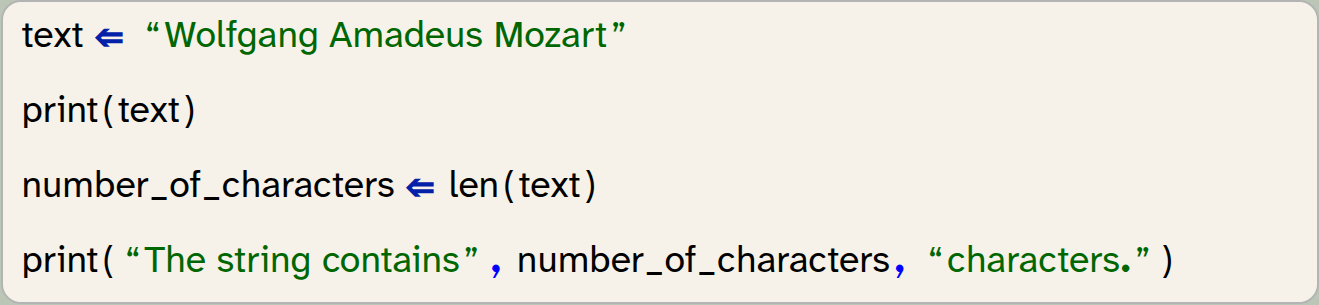
text = "Wolfgang Amadeus Mozart"
print(text)
number_of_characters = len(text)
print("The string contains", number_of_characters, "characters.")
Here we can see two things: The first is that spaces are also characters. The string "Wolfgang Amadeus Mozart" does indeed consist of 23 characters, not 21, because each of the two spaces is also counted. For a computer, a space is just a character like any other.
The second thing to note is that the print statement accepts multiple parameters, separated by commas, and it will print out each parameter, on the same line.
Exercise 1.4 Experiment with using the print function with different parameter lists. Try, for example, print(1, 2, 3) and print(text, "text").
From this exercise we can see that the parameters to the print functions can be literals (strings or numbers), or they can be the names of variables. We could also write a function call directly into the print function. Let us consider these two lines from the previous code snippet:

number_of_characters = len(text)
print("The string contains", number_of_characters, "characters.")
If we do not need the number of characters again later, we can achieve the same task without the variable:

print("The string contains", len(text), "characters.")In this version, the len() function is called as part of evaluating the parameter list of the print() function, and the value it returns is passed straight to the print() function without assigning it to a variable. This is a perfectly valid alternative achieving the same goal.
One limitation when using this version of the print() function is the automatic insertion of spaces. If you paid close attention, you will have noticed that the print() function automatically added a space between each of its parameter outputs (before and after the number, in our example). What if we wanted our output in a slightly different format:
Wolfgang Amadeus Mozart
Length: 23.
If it is important to us to have the period after the number, then we now have a problem: Simply writing

print("Length: ", len(text), ".")does not do the trick, because it inserts a space between the number and the period. We might ignore the problem, because it does not seem terribly important. However, in some cases we care about the exact format of the output, and we want to have full control. For those cases, we can use an alternative mechanism: formatted strings (sometimes also called f-strings by Python programmers). We can write the following:

print(f"Length: {number_of_characters}.")Note the character f before the string. Adding this prefix, the string becomes a formatted string, and it can now include placeholders in parentheses: { }. Between these parentheses, we can write the name of a variable, and the placeholder will be replaced by the value of the variable. It is also allowed to insert a call to a function (or any other expression) directly in the placeholder, and the resulting value will be inserted:

print(f"Length: {len(text)}.")A formatted string can include any number of placeholders, and the programmer is in full control of the formatting and spacing of the resulting string.
Exercise 1.5 Rewrite the output of the length of the string in your program using a formatted string.
Exercise 1.6 Formatted strings can be used for more sophisticated formatting than we have discussed here. Find out about additional formatting options on the internet: do a web search for "Python f-strings" or "Python formatted strings" and find at least two other formatting options that are provided. Write them down.
A formatted string (f-string) can be used to include values from variables or computed values within a string. It also offers more detailed formatting options.
1.6. Processing individual characters
The next thing we might want to do is to access the individual characters in our string one character at a time. This, too, is fairly straightforward. We can use a for-loop:
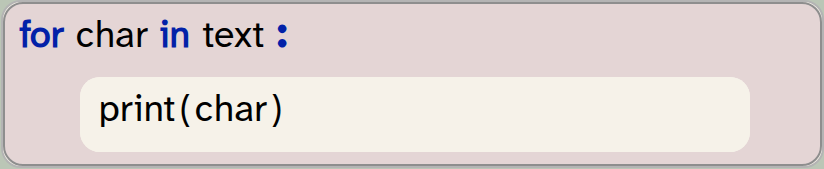
for char in text:
    print(char)
In this example, we assume that the variable text holds our string. In the for-loop, we declare a variable called char to be used as our loop variable. The for-loop will assign each character of the string to the char variable in turn, and execute the loop body once for each character. Here, we just print out the character, but we could of course add more code in the loop body for more sophisticated processing.
A for-loop can be used to iterate over the characters in a string.
Exercise 1.7 Add the for-loop to your program as shown above. Test your program.
The project with the changes discussed thus far is available in the book projects as text-analysis-v2.
1.7. A first analysis: character statistics
Now that we know how to access and process characters in a string, we can start with some simple analysis. As a first step, we would like to print out information in the following format:
Text: "It was a bright cold day in April, and the clocks were striking thirteen."
Length: 74 characters
Characters without spaces: 60
Number of punctuation characters: 2
You can make a start towards this with the following exercises.
Exercise 1.8 From your existing program, remove the loop that prints out the individual characters. Write or copy/paste a sentence to be analysed and assign it to your text variable. Run your program to test.
Exercise 1.9 Modify the remaining code to produce the first two lines shown above. Make sure the format is exactly as shown there.
In the last exercise, you may have encountered a small issue: We would like to print out double-quotes around the actual text. Since we have used double-quotes to identify the string literal itself, we cannot simply write a double quote inside the string. If we tried to use the following string:
"using "quotes" in a string - this does not work"
our program would fail, because the quotes intended to be within the string end the string itself, and we end up with invalid Python code. There are two possible solutions to this. The first one is to use a different string character. Since Python allows us to enclose strings with either single or double quotes, we can use single quotes to delimit the string if we wish to have double quotes within the string:
'using "quotes" in a string - now it works'
The second solution involves using a special character, the backslash: \. The \ character allows us to insert special characters into a string. Writing \" inserts a double-quote character into a string without ending the string:
"using \"quotes\" in a string - this works as well"
Using this second technique is useful if our string includes both single and double quotes.
Exercise 1.10 Make sure the output of your text is exactly as shown in the example above, including the double-quote characters.
1.8. Identifying spaces
Let us now work on producing the third line: counting the characters that are not spaces.
Counting all characters was very easy, since Python has a function built-in that does the job for us. We only had to call len(text) and we were done. If we want to count the non-space characters, life is not quite so easy: Python does not have a ready-made function for this, so we have to do the counting ourselves.
We can do this by looping through all the characters in the string (we have done this before), looking at each character, and counting all the non-space characters. For the counting, we need to use a variable that we can increment for each non-space character:
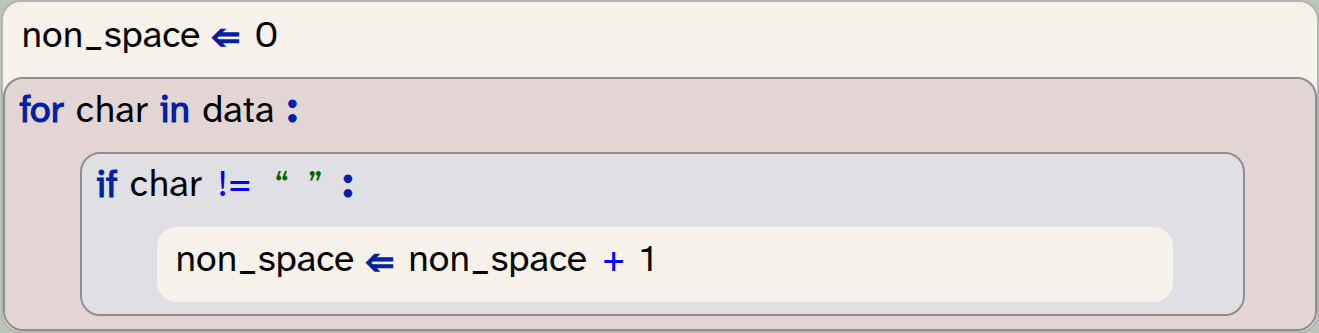
non_space = 0
for char in data:
    if char != " ":
        non_space = non_space + 1
In this code, we first initialise a counter variable to 0. We do this so that we can increment this variable for each non-space character that we find, thus counting the characters. Note that we have named the counter variable non_space – it is always good practice to name the variable as precisely as possible to express what we are using it for. This name indicates quite clearly what we are counting with this variable.
We then write a for-loop to go through all the characters of our string, as before. But this time we have an if-statement in the body of the loop: We check whether the character is "not equal to" a space, and if this is true, we increment our variable.
Two things are worth noting here:
-
The operator
!=means "not equal". So the conditionchar != " "will be true if the variablecharis not equal to the space character. You can see a list of all Python operators in Appendix A: Python operators. -
The line
non_space ⇐ non_space + 1increments the variablenon_spaceby one. Since in an assignment the right hand side is evaluated first, this statement reads the current value ofnon_space, adds 1 to it, and then writes the result back into the same variable.
Exercise 1.11 In your own program, implement this functionality: Print out how many non-space characters your text contains.
1.9. Identifying punctuation
We can write similar code to count the punctuation characters. Again, we use a for-loop that iterates through the characters in our text, looking at each character in turn. The main difference is that we now need to check this character against a whole group of other characters.
We can do this by first creating a string that includes all punctuation characters we wish to recognise:

punctuation = ".,/-?;:"In the condition of the if-statement (inside the loop), we now check whether the current character is contained in our punctuation string:
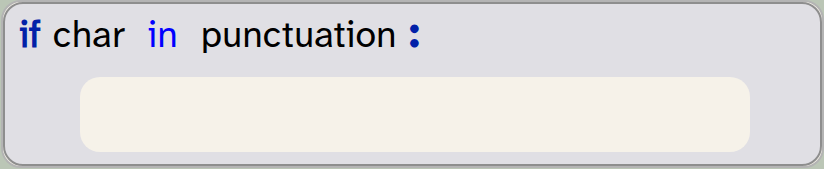
if char in punctuation:
   pass
The in operator checks whether the character is included in the string, and returns True if it is.
Exercise 1.12 Implement the counting of punctuation characters in your own program. You can start by copying the counting of non-space characters and then making the modifications discussed above. Make sure to give your variables appropriate names!
One other small improvement we can make is to use a more complete set of punctuation characters. Luckily, we do not need to find out what they are and type them all in ourselves – Python already has a string variable with all punctuation characters in it. This variable is called punctuation and is defined in a separate module called string. We can use it by importing it from the string module:

from string import punctuationWhen you add this import to your program, you should remove your own definition of the punctuation string. Your program will now use the complete set of punctuation as defined by Python.
Exercise 1.13 Make the changes discussed above to import and use the pre-defined punctuation string. Test to make sure your program works again.
Exercise 1.14 Print out the punctuation string to see what characters it contains. How many characters are in it? (Then remove this print statement again from your program.)
Exercise 1.15 Test your program with a few different sentences. Does it count correctly?
1.10. Better structure: using functions
If we want our program to be able to easily do this analysis for different texts, we can now move our code into a function which we can call repeatedly, with different text as a parameter.
Exercise 1.16 Define a new function, called analyse_text, that takes one parameter called text. Move all your code that analyses your text from the "My code" section into this function.
Exercise 1.17 In the "My code" section, write a call to your analyse_text function that passes your test sentence as a parameter. Run your program. Make sure that it produces the correct output again.
An example of the project after these changes is in the book projects as text-analysis-v3. Compare your own version with this one. You can see that an advantage of moving your analysis code into a function is that it can now be called multiple times without much effort.
Exercise 1.18 In your "My code" section, add two more calls to your analyse_text function, using opening lines from two books of your choice as parameters.
1.11. Handling files
We have said above that an advantage of using computers is that they can do tasks very quickly, and with amounts of data that we would not want to process by hand. So let’s try this out: Before we go on to count words and sentences, let us first see whether our program can cope with larger text sizes.
Strype has a read-only file system that provides some data files to use with our projects, including the text of some books. One of them is Pride and Prejudice by Jane Austen. The file is a plain text file, accessible at /books/pride-and-prejudice.txt. (This is the full text of the book.)
The project you have been working with includes a helper function called read_file(filename), which you can use to read a file from the file system. This function returns the content of the file as a string. So we can now easily read in this whole book from our file system, and then pass it to our analyse_text function:

text = read_file("/books/pride-and-prejudice.txt")
analyse_text(text) Code completion for data files: The names of the available data files in the built-in Strype file system can be accessed via code completion: Place the cursor inside an empty string (within the quotes in this line):

text = read_file("")and then use Ctrl-Space to invoke code completion. The completion dialogue will show the available data files.
Exercise 1.19 Make the changes discussed above: Instead of using a string literal, read the text file from the file system, and store the text in a variable. Pass this variable to your analyse_text function.
Exercise 1.20 If you have run your program after the previous exercise you will notice that it takes some time to complete. This is because it prints out the complete text to the terminal! With a text of this length, this does not make much sense. Remove the printing of the actual text from your analyse_text function.
Exercise 1.21 Print the title of the text being analysed before its details are printed.
Exercise 1.22 The Strype file system contains the full text of two other books, in the files "/books/war-and-peace.txt" and "/books/winnie-the-pooh.txt". Add the analysis of these two texts to your program.
Exercise 1.23 One small improvement we can make is to print a comma as a thousands separator in our number output. For example, the number 2760512 would then be shown as 2,760,512. In a formatted string, this is easy: If we use the placeholder {number:,} in our f-string (that is: if we add :, after the variable name), then the number will be shown with a thousands separator. Make this improvement for all the number outputs in your own code.
Text files can be read from the file system. The content of a text file is usually provided as a string.
Working with data files in Strype: It may be interesting to use your own data files for use in your Strype projects.
Strype cannot access data files on your local computer. The reason for this is security: web applications running in a browser are not permitted to access your local file system, so Strype cannot read from or write to your own local drive.
There are, however, two ways how you can use your own files for use with Strype: You can upload a file to Strype’s temporary local file system, or you can store your project (and its data files) in an online file system.
How to do this is explained in Appendix C: Working with data files.
1.12. Summary
In this chapter, we have concentrated on two areas. Firstly, we have worked with strings. Strings represent text, and when we can work with strings, we can analyse and manipulate text. Text analysis is a first example of data science, of which we will see a bit more in a later chapter.
In working with strings, we have seen how we can access individual characters and how we can format strings to create output that looks exactly as we would like it to look.
Secondly, we have again seen examples of improving the structure of our code. We have used functions to create a program that is modular and readable. This is important to create code of good quality, as it makes it easier for others reading our code to understand it.
At the same time, we have also seen how to use variables to store values, count and make calculations. This will be of good use in many of our programs in future.

-
String variables store text. The text can be of any length: it may hold just a few characters, or the text of a whole book.
-
The len() function can be used to count the length of a string (the number of characters).
len()is a built-in function that is always available; it does not need to be imported. -
A formatted string (f-string) can be used to include values from variables or computed values within a string. It also offers more detailed formatting options.
-
A for-loop can be used to iterate over the characters in a string.
-
Text files can be read from the file system. The content of a text file is usually provided as a string.

Caesar Cypher
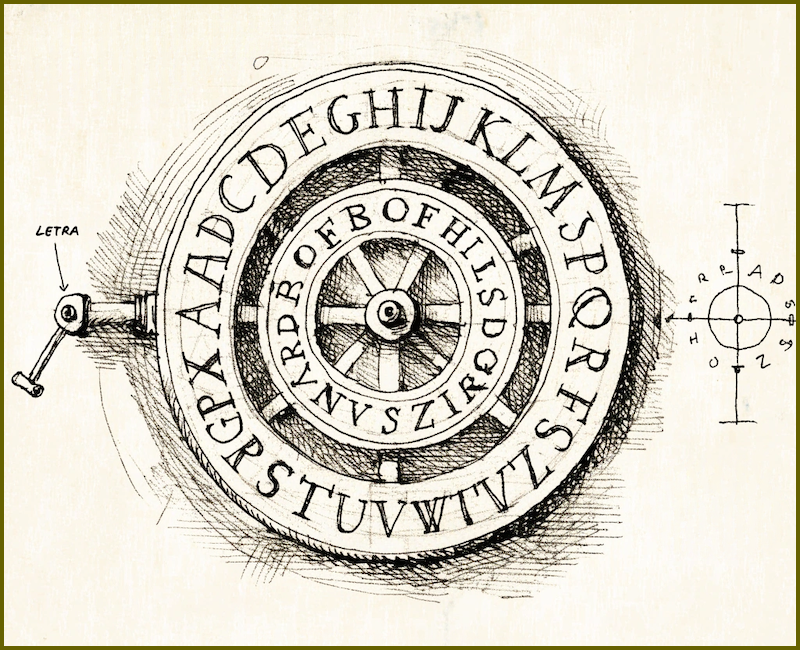
The Caesar Cypher is a very simple encryption technique used to encrypt and send secret messages. It is named after Julius Caesar, who reportedly used it in his correspondence. If you would like to find out more about how it works, do a web search – there is plenty of information online.
The caesar-cypher project is meant to encrypt your messages before sending, and decrypt secret messages you receive. It is, however, incomplete: it can currently only encrypt a single character.
Try the following: extend the project so that it can encrypt a complete text. Then send the text to a friend (who should also work on this program), perhaps by email or text message. When you receive an encrypted response from your friend, decrypt it (using a decrypt function that you also need to write).
If that works, you can also experiment with other shift values: instead of shifting by one character, you can shift by three or seven characters. You could let the user choose by how many characters to shift: a secret key! The key is then needed to decode the message.
You could also extend your program so that you do not need to copy and paste the message into the program text. Instead, your program could read and encrypt an entire file, and write the output to another file.
Chapter 2. Linguistic analysis
We have seen that we can quite easily process large amounts of text with our program. We would certainly not want to count the numbers of characters in War And Peace by hand, and getting a computer to do this for us helps.
But why would we want to know the amount of characters in the first place? In reality, the plain number of characters itself is not often that interesting. But it gets more interesting once we start counting words and sentences and analysing them. Then we get into the area of linguistic analysis, which can be used, for example, to draw conclusions about the author of a written work.
A famous case concerns the works of William Shakespeare. A passionate debate has raged on and off at least since the 19th century about the authorship of Shakespeare’s work. While theories that another author has written all of Shakespeare’s works are almost certainly untrue, and are usually dismissed by serious scholars, debates about individual works are quite valid. There are several written works where authorship is unclear: either works attributed to Shakespeare where authorship is not proven, or unattributed works that may have been written by him.
It gets even more complicated: In the 17th and 18th century, it was not uncommon for theatres to commission for existing plays to be padded out by paying other writers to add scenes or acts to other authors' plays to make them longer. Many scholars believe that Shakespeare’s plays contain parts that may not have been written by him.
Linguistic analysis has been used as one tool to provide some evidence in this debate. It is based on the observation that this analysis can detect a personal style in the use of words, which can then be used – in a way similar to a linguistic fingerprint – to identify the author. It alone cannot give conclusive answers, but it can add interesting pieces of evidence for scholars. See, for example, Shakespeare by the Numbers[1] from the Shakespeare Oxford Fellowship.
Another example where linguistic analysis is used is to determine the reading complexity of written texts. Various algorithms exist to determine a "reading ease score" for a given text which expresses how hard or easy it is to comprehend. This may be used to choose appropriate books to study at school for specific age groups, or to make sure that important instructions provided with medication are not too complicated to be understood by the majority of the population.
One thing all forms of linguistic analysis have in common is that counting characters is not enough. At a minimum, we have to be able to identify and count words and sentences. So let us go on and investigate how to do this now, and then calculate a "reading ease" score for our documents.
Exercise 2.1 Let us jump ahead a bit and see where we are going with this. Open the project text-analysis-v5. This is the completed example which we will develop in this chapter. It is not important to understand the code at this stage. Run the program and look at the output: Which of the three books analysed do you think is the easiest to read? How is this represented in the printed output?
Close this project again, and open your version which you developed in the previous chapter (or use text-analysis-v3 if you do not have your own). We will continue to work from there.
2.1. Counting words
Counting the number of words in a text is very easy, because Python strings have a method called split, which splits the string into words. It will return to us a list of strings in which every element is an individual word from the original string. We can use it like this:

words = text.split()Note that this is a method of the string object (not a free-standing function) so we call it using the string variable, a dot, and then the method name.
To be precise: The split method splits the original string at every occurrence of whitespace. Whitespace is any space, TAB character or line break. Punctuation characters will not be treated specially, so that, for example, this sentence would be returned containing the word "example," (including the comma as part of the word.) If we wanted to analyse specific words, we would have to remove the punctuation characters. However, for counting words, this is not a problem.
Once we have received the list of words, we can obtain the number of words just by looking at the length of the list – it has one element per word. The built-in len() function, which we have seen earlier to count characters in a string, can also tell us the length of a list:

number_of_words = len(words)This is all that is needed to count and then print out the number of words.
The built-in len() function can be used to return the length of a list.
Exercise 2.2 Implement the counting of words in your own project. Print out the number of words as part of your analyse_text function.
2.2. Again: using functions to improve code structure
While we add functionality to our program, our functions tend to become longer and longer. In our case, the analyse_text function has now become quite lengthy.
Long functions (or a long sequence of code in the "My code" section) make a program hard to read, and hard to understand. If a program is hard to understand, it is much more likely that errors creep in, or that we have difficulty extending or changing the program.
Our goal should always be to write short, concise, focussed functions. (The technical term for this is "cohesion": we aim to write cohesive functions.) The guiding rule is that every function should be responsible for one single clearly defined task.
Every function should be responsible for one single well-defined task.
Looking at our analyse_text function, we can summarise what it does like this:
-
It prints out the length of the text (the number of characters).
-
It counts and prints the number of non-space characters.
-
It counts and prints the number of punctuation characters.
-
It prints out the number of words in the text.
As we can see, these are four separate tasks. None of them really depends on the others; they are quite separate.
Following our rule of functions doing a single task, it follows that these four tasks should all be in separate functions. Creating this structure does indeed create a much more readable program, which will be easier to understand and maintain. Make this improvement in your own code by doing the following exercises.
Exercise 2.3 Create four new functions for the four separate tasks listed above. Make sure you name these functions appropriately, so that the name describes what they do. Move the code to implement each task into the body of the corresponding function. Then rewrite your analyse_text function to call these four functions. Test your program to make sure it still works; it should now do the same it did before these changes.
One further improvement we can make is to modify our new helper functions to calculate their results and then return them (instead of printing them). This separates the calculation logic from the printing, and leaves it the task of the analyse_text function to decide how to print the results. The function to calculate the number of words, for example, might then look like this:
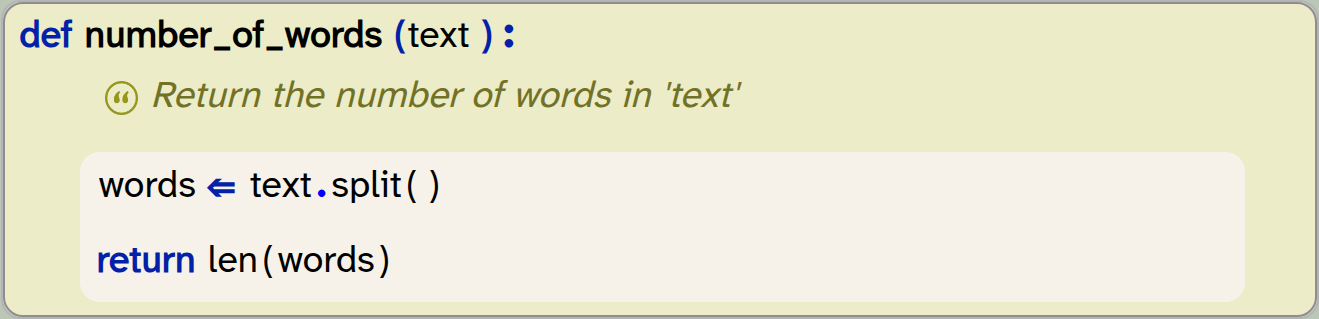
def number_of_words(text):
    """Return the number of words in 'text' """
    words = text.split()
    return len(words)
The analyse_text function can then simply call this function and print out its result.
Exercise 2.4 Modify your four new helper functions to calculate their result and return it as a function return value, using the return statement. Print out the result in the analyse_text function.
Exercise 2.5 You will notice that your own function to calculate the length of the text in characters just makes one call to an existing function (the len() function). In this case, your own function may not be necessary. You can remove this function and call the len() function in analyse_text instead.
Exercise 2.6 The project text-analysis-v4 in the book projects contains all the changes discussed here so far. Look at it and compare your own solution to this one. Have you done anything differently? Can you spot anything that you can improve?
The tasks carried out in this section of the book did not change the functionality of our program. It does exactly the same as before. So were they worth doing?
In these tasks, we did not add functionality, but we instead cleaned up the implementation and made our code more readable and easier to modify and extend. Just all-round nicer.
In general, when we are programming, we should alternate between these two phases: add new code, then clean up the code we wrote and make it as nice as we can. Many novice programmers do not bother to do this. The result would be that we end up with long, messy, hard-to-read code, and at some point we will get stuck with a program that we can no longer understand and maintain. Being a good programmer means not only to write correct code, but also to write readable code.
What we have seen here is that defining separate functions serves two distinct purposes: Firstly, when we have defined analyse_text as a separate function, we have seen that we can then call this function two or three times, without needing to write the code two or three times. Thus functions serve to support reuse: We can reuse the same code repeatedly and easily.
Secondly, with the functions we have created in this section, we have used them to support modularity. We divide our whole program into small and simple building blocks (the functions), which we can then assemble to solve larger tasks. This helps us solve problems by dividing larger problems into smaller sub-problems, and also serves to keep our code clear and readable.
Using functions supports code reuse: Once a function is written, it can be called multiple times, in different places, without the need to write the code twice.
Using functions supports modularity: Breaking up our code into separate functions structures our program into logical tasks. This makes the code easier to understand and easier to modify.
2.3. Counting sentences
Counting the number of sentences in a text is a bit more involved than counting words, because there is no built-in string method to do this. But it is not very difficult. In fact, it is quite similar to something we have already done: counting punctuation characters.
In this case, we do not want to count all punctuation characters, but only those that end a sentence. As a starting point, we can just assume that the full stop, exclamation mark or a question mark end a sentence, and thus just count those characters. We can do this again, as we have done before, by using a for-loop and an if-statement to count those characters:
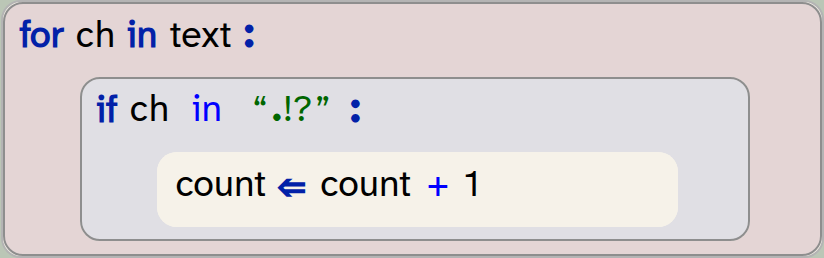
for ch in text:
    if ch in ".!?":
        count = count + 1
Exercise 2.7 Implement the counting of sentences in your project. Follow the same structure as before: Create a separate function that returns the number of sentences in a text as a return value.
Of course, the counting of sentences in this way is not entirely accurate. If, for example, the text includes three dots … – this would be counted as three sentences, which is not correct.
There are two ways to deal with this: The first is to refine the function that counts sentences to take this into account. The second is to live with this approximation. In a long text, this inaccuracy will be small, and for many purposes our approximate (almost correct) result will be good enough. So the solution to choose depends on the context.
What we intend to do is to calculate a text complexity score. For this purpose, this approximate result is good enough, and we choose to leave it as it is.
2.4. Counting syllables
A syllable is a single sound in a word when spoken. For example, "the" has one syllable, "happy" has two syllables, and "computer" has three. Syllables can be used for some calculations of text complexity, which we will explain in the next section. To use the number of syllables in a calculation, first we need to be able to count them.
Counting syllables in the English language (and most other languages) is much more complex than counting words or sentences. Because of this, we will use another approximation here: We will use a heuristic (which is essentially just a rule of thumb), which says that in the English language on average the number of syllables in a word is the number of characters, divided by 3.2, rounded to a whole number.
In Python, we can write this like this:

num_syllables = round(len(word) / 3.2) In this code, we can see that we again use the len() function to get the number of characters in a word, we use the / operator for division, and we see that there is a built-in round() function to round the result to a whole number for us.
The round(n) function can be used to round a decimal number to an integer (a whole number).
Exercise 2.8 Do some research on the round() function. You can do this by doing a web search for "Python round". What is its optional second parameter?
Exercise 2.9 Implement a function in your code to calculate syllables in a word, using the formula above. Test it by calling it with some words. How often is it accurate?
Now that we can compute the (approximate) number of syllables in a word, we can calculate the number of syllables in the whole text by just looping over all words again, and adding up the syllables of each word:
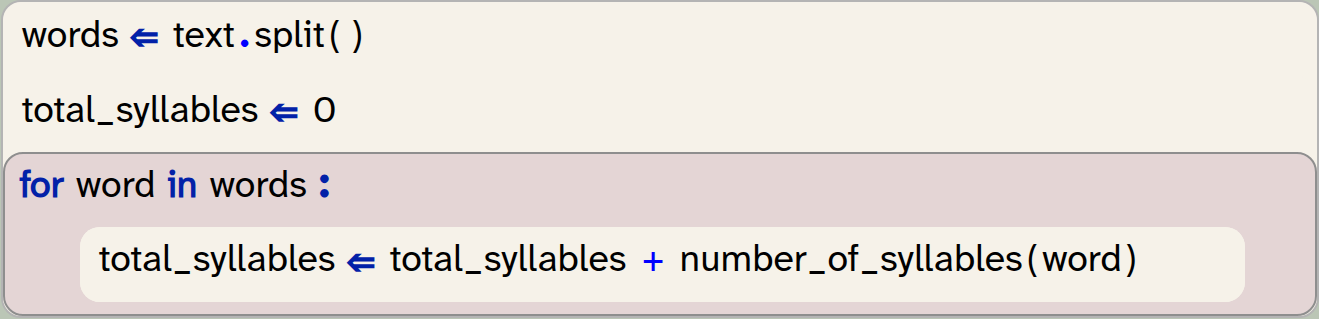
words = text.split()
total_syllables = 0
for word in words:
    total_syllables = total_syllables + number_of_syllables(word)
Note that this is different to just applying the formula to the length of the whole text, because the rounding for each word affects the result.
Exercise 2.10 Add code to your program to calculate and print the total number of syllables in your text.
2.5. Text complexity
The last thing we will do in this chapter is to calculate the text complexity using a reading ease score. Now that we can calculate all sorts of statistics of our texts, this is quite straightforward.
Several different formulas are in use by professionals to do this. We will use one of the most commonly used methods, the Flesch reading ease score. (If you want to find out details about this, do a web search.)
The Flesch reading ease score is calculated with the following formula:

This formula will give us a score between 0 and 100. This score can then be used to classify the difficulty of the text, using the following table:
| Score | Readability | Who can understand it |
|---|---|---|
90–100 |
Very easy |
Understandable by an average 11-year-old student |
80–90 |
Easy |
Conversational English for consumers |
70–80 |
Fairly easy |
Understood by most 12-year-olds |
60–70 |
Standard |
Plain English. Easily understood by 13- to 15-year-old students. |
50–60 |
Fairly difficult |
School students in 10th to 12th grade |
30–50 |
Difficult |
University graduates |
< 30 |
Very difficult |
Specialists, experts |
Looking at the formula, we can see that we need only three values as input, all of which we have already computed: The total number of words, the number of sentences, and the number of syllables in the text.
This means that we can now write a function to calculate the reading ease score, and call it with these values:

def get_reading_ease(words,sentences,syllables):
    """Calculate the Flesch reading ease score"""
    return ...
The body of this method here is incomplete – we leave it as an exercise for you to fill it in.
Exercise 2.11 Write a function to calculate the Flesch reading ease score as shown here. Return the correct score using the formula shown above.
Exercise 2.12 The Flesch reading ease calculation regards parts of a sentence separated by a comma or a colon as a separate sentence. Adapt your function which calculates the number of sentences so that it takes these two characters (,:) into account to create separate sentences for the purpose of our calculation.
Exercise 2.13 Print out the reading ease scores for the text documents analysed in your program. (Hint: the score for Pride and Prejudice should be 73.85. If you see this result, then your program is correct.)
Exercise 2.14 You may have noticed that the output for your reading ease score shows many digits after the decimal point – many more than is useful. Print the result rounded to two decimal places. You can achieve this in one of two ways: You can either use the round() function (round (value, 2) will round value to two decimal places), or you can add the formatting option :.2f after a value in an f-string (e.g. f"Value: {value:.2f}" will do the same.)
Exercise 2.15 What is the reading ease score of the sentences
"Programming is fun. I enjoy it."
What is the score for the sentences
"The systematic development of correct computer code instills feelings of pleasure. It creates unquestionable sensations of distinct and surprising enjoyment."
Exercise 2.16 Use some texts of your own, and run your analysis on those. You can either find the full text of books on Project Gutenberg, a website that provides out-of-copyright books, or you can use, for example, the last essay you wrote for school work. In each case, you have to make sure that the text is saved in plain text format. If the text comes from the web, make sure you download a "Plain Text" (or UTF-8) file. If it is your own document, and you wrote it in a word processor, make sure to save the file in plain text format before using it with your Python project. You can usually do this using the "Save As" menu item and selecting plain text format for saving. If you are unsure how to access your own files, have a look at Appendix C: Working with data files.
As always, an implementation of the project as discussed here is available in the book projects; it is called text-analysis-v5.
2.6. Summary
In this chapter we have continued our analysis of text. We have seen how we can identify not only characters, but words and sentences, and how to use this information to assess the reading ease of a piece of writing. This text analysis is a first example of data science, of which we will see a bit more in a later chapter.
Secondly, we have again seen examples of improving the structure of our code. We have used functions to create a program that is modular and readable. This is important to create code of good quality, as it makes it easier for others reading our code to understand it.
-
The built-in len() function can be used to return the length of a list.
-
Every function should be responsible for one single well-defined task.
-
Using functions supports code reuse: Once a function is written, it can be called multiple times, in different places, without the need to write the code twice.
-
Using functions supports modularity: Breaking up our code into separate functions structures our program into logical tasks. This makes the code easier to understand and easier to modify.
-
The round(n) function can be used to round a decimal number to an integer (a whole number).
Oscar winners

Have a look at the oscar-winners project: It reads a text file that contains information about all Academy Award (aka "Oscar") nominees from 1950 to 2025 and then prints out the winner for each year.
Have a look at this program and figure out how it works. (Also have a look at the text file itself to see what information it contains.)
Once you understand how it works, you may try to extend the program to let the user choose what they want to see. In addition to the list of winners it could also be: the winner for just a single year; all nominees for a given year; all films by a given director (and the year they were nominated); all movies with a given substring in the title (e.g. "midnight"), and so on.
The next thing you could try is to find another text file that contains information separated by commas and write a similar analysis and summary program for that one.
Chapter 3. Introduction to lists
In the previous chapter, we have seen that we can write programs that handle quite large amounts of data. In the example we have programmed, the data was text, and the individual data items were characters, which were held in a string. Almost all programs, in fact, work with collections of data, often very large collections, and the ability to process large collections of data is one of the core characteristics of computers.
In this chapter, we will investigate how we can work with other types of data – data that is not text. Once you start thinking of applications on a computer, you will notice that almost all of them have at their core the processing of collections of data: word processors handle collections of words and sentences; search engines process collections of webpages; social media apps handle collections of posts; games animate collections of game items; weather forecast programs process collections of environmental readings, and so on.
Think about the programs you use most often on your phone or your computer: there are very few programs that are not based, in some form, on the processing of collections of data.
In previous chapters, we have seen variables, which allow us to store data. We have also seen that variables can store data of different types – such as int, float, or str. However, each variable stores only one value. What if we want to work with hundreds, or thousands, of data items?
It would not be practical to use a thousand different variables. Instead, Python offers collection types – types of data that can store a whole collection of data items in a single object.
The most common of the collection types in Python are lists, dictionaries, tuples and sets. In a later volume of this book series we will look at all of them. Here, we will start by concentrating on the most commonly used type of collection of the four: lists.
3.1. A list example: The temperature dataset
We will investigate and practice working with a list using the temperature project from the book projects. This program provides a dataset of the average daily temperature (in degrees Celsius) in London, UK, for each day in 2025.
Let us start by looking at this data.
Exercise 3.1 Open the
temperature project from Chapter 3 of the book projects. You will see that it reads a file called "/data/london-temperature-2025.txt" into a variable called data. Print out the data variable. What do you see?
With the previous exercise, you will have seen that data contains a long list of numbers, which are printed separated by commas, and enclosed in square brackets. This indicates that data is a list: Lists in Python are written in square brackets, and their elements are separated by commas. Each value in this list is the average temperature of one day, starting at 1st January.
Exercise 3.2 Add the following lines to your program:

numbers = [1,2,3]
print(numbers)
What do you see? Try this with values other than 1, 2, 3 – also use strings and floating point numbers in your experiments. Can you tell from the output what the type of each element is?
In Python, the square brackets [ ] create a list, and we can write the list elements between the brackets. So the expression [1, 2, 3] created a list with three elements in it; printing out the list prints the elements to the console.
Python provides a list type, which can store a list of items. Lists are defined using square brackets and values separated by commas: [1, 2, 3].
If we are unsure about the type of one of our variables, we can inspect it in our code. The type() function tells us the type of data held in a variable. For example,

print(type(numbers))will print out the type of the variable numbers.
Exercise 3.3 Print out the type of the numbers variable. What is it?
Exercise 3.4 What is the type of 5, the type of 5.0 and the type of "5.0"?
We can find out the type of a data item using the built-in type() function.
3.2. Accessing elements
Once we have a list, we can easily access individual list elements using square brackets and an index after the list name. For example

data[1]accesses the element number 1 from the list. Let’s try this out.
Exercise 3.5 Remove your numbers list from your program again if it is still there, and go back to working with the temperature data. Print out element number 1 from that list using the following statement:

print(data[1])Compare this to the elements you see when you printed the whole list. Can you see the individual value you printed in the list? Which element did you print?
Exercise 3.6 Print out the fourth element of the list. Then print out the first element.
We can access individual elements in a list by providing an index in square brackets, in the form list[index].
3.3. Index numbering
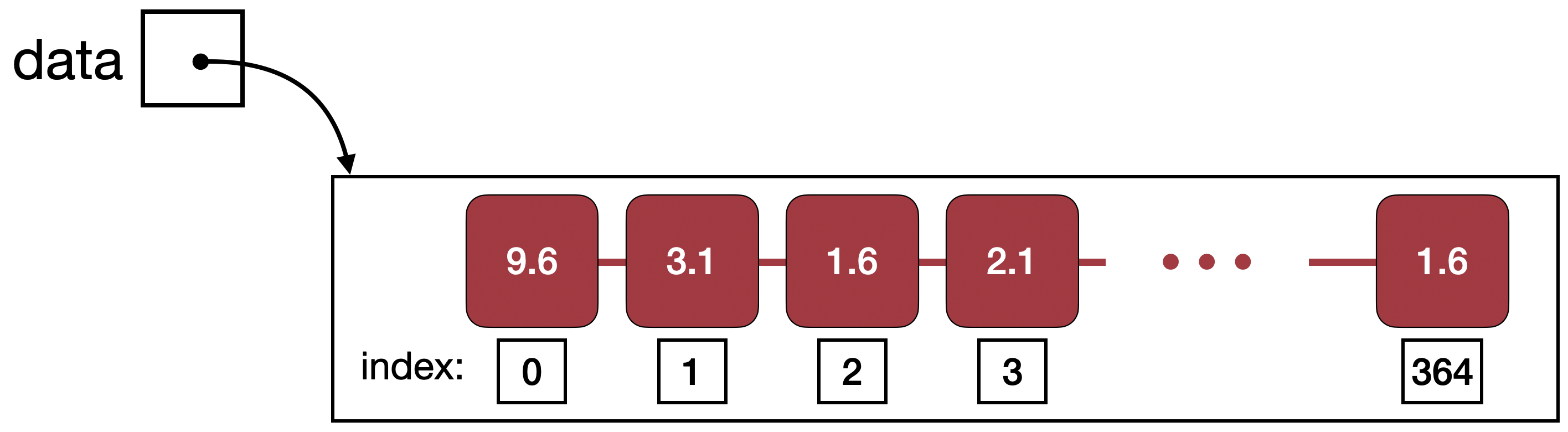
When you did the previous exercises, you will have see that printing data[1] does not print the first element of the list, but rather the second. This is because element numbering in lists starts with 0. We call the position of a list element its index, and Figure 3.1 shows a list with the assigned index numbers. In this diagram, we can see that we need to print out the element at index zero if we want to see the first element.
Exercise 3.7 In a list with 32 elements, what is the index number of the last element?
Exercise 3.8 In a list of length n, what is the index number of the last element?
Index numbers in lists start with index 0.
3.4. Element types
We can now start writing code to do some analysis of the temperature data. We might, for example, like to know what the lowest temperature of the year was, or the average temperature in July.
Once we start doing this, we will notice a small problem. To illustrate this problem, let us start by doing a very simple exercise.
Exercise 3.9 Add the first and the second element of the list together and print out the result. What do you see? Is this what you expected?
If you have done this exercise, and if you have written data[0] + data[1] to add the two values, you will have noticed that the output is not what we would expect.
The two first values in the list are 9.6 and 3.1, so we would expect to see a result of 12.7. This is not what we saw. So what is going on here?
The reason for the unexpected result is that the elements in the list are not numbers, but strings. So the first element is not the number 9.6, but the string "9.6". We get a clue to this fact from the output: if you pay close attention, you notice that the values in the printed-out list are all enclosed in quotes: '9.6' instead of 9.6. Remember that strings can be written with double quotes or single quotes – so this tells us that the elements are strings.
The + operator, which is performing addition when the operands are numbers, actually performs string concatenation if the operands are strings. String concatenation just glues two strings together. For example, the result of
"Cat" + "Fish"
is
"CatFish"
(Note that Python does not automatically add a space when concatenating strings.)
The reason that our data is represented in strings is that it was stored in a textfile. The content of a textfile, when we read it, is always delivered to us as strings when we read a file. In our case, we know that the file content is a set of numbers, but to get it into a number format in our program, we first have to convert the strings back into numbers.
String concatenation joins two strings together into a single string. It is written with a + sign: string1 + string2.
Exercise 3.10 The type() function which we have seen above can also be used to check the type of the individual list elements. Try this by printing the type of the first element in the list. What is it?
3.5. Type conversion
When we see the values, 5, 5.0 or "5", we tend to read them all as "five". In Python, these values represent an int, a float and a string, respectively, and they are internally stored in completely different ways.
We have also seen that performing operations on these different types can do entirely different things. For example, 5+5 is 10, but "5"+"5" is "55". On the other hand, "5"-"5" will produce an error (since the minus operator is not defined for strings), but this is a perfectly valid thing to do with ints or floats.
In short: the fact is that the number 5 is not the same as the string "5".
We can, however, convert values of one type to another type. We do this by using functions that have the same name as the type we wish to convert to. For example:

number_string = "13.7"
number = float(number_string)
In this example, the str type is converted to a float, and the type of number will be float. Equally, we can use the functions int(n) and str(n) to convert values to the int or str types. We have to take care, though: if we try to convert a string to a number, and the string does not actually contain a number, we will get an error.
Values can be converted from one type to another by using built-in type conversion functions. The most commonly used conversion functions are int(n), float(n) and str(n).
Exercise 3.11 Write some code to convert the string "001.00300" to a float and print the result. What is the value?
Exercise 3.12 What happens when you convert 3 to a float and print it? What happens when you convert 3.8 to an int? What are the resulting values?
3.6. Building a new list
The last two sections serve to illustrate just one important insight: to use our list of temperature data properly, we need to convert our list of strings to a list of floats.
We do this by building a new list. We iterate (loop) over the original list, read every element in turn, convert it to a float, and add it to our new list of floats. The code to do this looks like this:
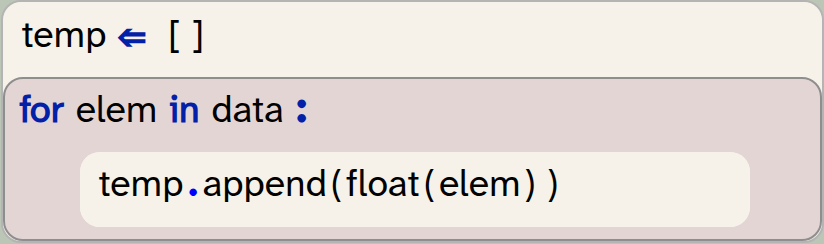
temp = []
for elem in data:
    temp.append(float(elem))
In this code snipped we do several things:
-
We create a new, empty list by using the square brackets:
[ ]. This list will initially have no elements in it, but it is still a valid list. We assign it to the variabletemp(short for temperature). -
We iterate through the
datalist. This takes each list element in turn, converts it to a float, and appends it to thetemplist.
We can see that list objects have a method called append(n). This method adds its parameter to the end of the list it is called on.
At the end of this, we expect the temp list to have the same number of elements as the data list, but holding floats instead of strings. Check this by checking the length of each list. Remember, we have seen in the previous chapter that we can use the len(list) function to get the length of a list.
Exercise 3.13 Implement the conversion of the list of strings to a list of floats, as shown above. To test whether this was successful, print out the temp list. Can you tell whether the elements are now numbers?
Exercise 3.14 Print out the length of both lists. Are they the same? How many elements are in each list?
Exercise 3.15 If you prefer to work with degrees Fahrenheit, rather than Celsius, you can do the following: Convert the temperature list to Fahrenheit. Do this by building a new list, where each element is calculated from the existing list. The formula to calculate degrees in Fahrenheit (F) from Celsius (C) is F = (C × 9/5) + 32.
We can create an empty list by writing just a pair of square brackets: [ ].
The list method append(n) adds an element to the end of the list it is called on. It is called in the format list.append(elem).
Now that we have a list of numbers, rather than a list of strings, we can start looking at values in a more meaningful way.
3.7. Finding elements: Hottest temperature of the year
The first thing we might ask about the London temperatures is: How hot was the hottest day of the year? How cold was the coldest?
We can find the answer to both of these questions quite easily now: Python has built-in min(list) and max(list) functions, which find the minimum and maximum values in a list.
Exercise 3.16 Print out the temperature of the coldest day of the year. Print out the temperature of the hottest day of the year. Make sure you print some text as well to state what the values are.
Note that the data is the average temperature for each day, with the first data point the average for the 1st of January, and the last the average for 31st of December. So the minimum we see here is not the coldest temperature recorded in the year, but the coldest daily average.
The min(list) and max(list) functions can be used to find the minimum or maximum value in a list.
3.8. Finding the index of an element: When was the hottest day?
We can now see what the minimum and maximum temperatures were – but on which day did they happen?
To answer this question, we need to know where in our list the maximum value was found. We can find this out using the index method. For example

temp.index(13.6)will return the index of the value 13.6 in the list temp. (We have to be careful with this: If the value we are searching for is not found in the list at all, then this will be an error. So we should call the index method only if we know the element exists.)
We can now find the index of the hottest day by writing

max_index = temp.index(max(temp))This statement first finds the maximum value, and then finds the index of that value.
Exercise 3.17 Write code to find the index number of the hottest and coldest days. Print out the results. Make sure to print your output with information about what the number means.
Currently, we only get the index of the day in our list, rather than a properly formatted date. The index identifies the day (we know that index 0 is the 1st of January, and index 364 is the 31st of December, and we could count out the days inbetween), but it is not a convenient format.
For now, we will leave it as it is – just printing out the day number is a decent start. We will look a little later, further down in this chapter, at how to convert this to a date.
Another limitation worth mentioning is that the index method only finds the first occurrence of a value in a list. So if the maximum temperature was reached twice, at exactly the same value, we will find only the first of these days.
The list.index(n) method can be used to find the index of the first occurrence of element n in the list. The element must exist in the list when this is called.
 Functions versus methods: Python makes use of both functions and methods in the functionality it provides for lists. This can be a bit confusing.
Functions are called in the format
function_name(list)
while methods are called in the format
list.method_name(param)
For list functions, we pass the list into the function as a parameter, while for list methods, the list is named first, in front of the dot.
The reason is partially historic, and partially pragmatic. Functions are typically used when the operation can also be applied to types other than lists. len(n), for example, can be applied equally to a list and to a string. Methods, on the other hand, belong to the list type.
The most important list functions are:
len(list), min(list), max(list), sum(list), sorted(list)
The most important methods are:
list.append(), list.clear(), list.copy(), list.count(), list.extend(), list.index(), list.pop(), list.remove(), list.reverse(), list.sort()
You can find a description of these functions and methods in Appendix B: Built-in functions.
3.9. Slicing: Looking at individual months
The next thing we may want to do is to analyse specific months.
Taking a specific sub-list out of an original list is called slicing: We are taking a slice out of a list. Slices are written in square brackets, with the beginning and end index specified. For example

jan = data[0:31]creates a new list with the first 31 values copied from data and assigns it to the variable jan. If we want a slice from the start or to the end of a list, we can just leave off the lower or upper bound. For example

jan = data[:31]does the same thing: it creates a slice from the start of the list to index 31. If we leave off the end index, then we get a list with all values from the start index to the end of the list:

rest_of_year = data[31:]Exercise 3.18 Add code to your project to create a temperature list for January and print it out.
Exercise 3.19 Print out the warmest day in January.
It is worth looking very carefully at the indices used in the slicing operation. In the slice above, we specified 0 as the lower boundary, and 31 as the upper boundary. When creating slices, the element at the lower boundary is included, while the element at the upper boundary is excluded. In other words: the new list will hold a copy of the elements 0 to 30 from the original list. These are 31 elements. In any slice [n:m], the value of m-n will tell us the number of elements we will receive.
Exercise 3.20 Print out the warmest day in February. Then the warmest day in March.
We can create a slice of a list by providing two indices separated by a colon: list[start:end]. This will create a new list holding the elements from start (inclusive) to end (exclusive). We can leave out the start index (list[:end]) to create a slice starting from the beginning of the list, or leave out the end index (list[start:]) to create a slice that reaches to the end of the list.
When we want to slice the data for later months in the year, determining the beginning and end of the slice becomes quite tedious. Counting or calculating the numbers by hand quickly gets annoying. We will come back to this in the next chapter, where we will implement a solution to deal with this problem.
First, however, let us look at one more list method: sorting.
3.10. Sorting: Finding the 10 coldest days
In the next step, we would like to find the 10 coldest temperatures of the year. There is no built-in function to find the 10 most minimal values, so we will have to think of something else.
We could, of course, write a loop and iterate over the list, look at each element, and try to identify the 10 smallest numbers. There is, however, an easier solution.
Part of the solution is the built-in sort() method of the list type. The statement

temp.sort()will sort our list, with the smallest value first and the largest at the end. We can also sort the list in descending order by providing a parameter:

temp.sort(reverse=True)With the knowledge of sorting and slicing, we can now solve our problem: To print out the 10 coldest days, we can sort the list (coldest days first) and then take a slice of the first 10 elements.
Exercise 3.21 Print out the temperatures of the 10 coldest days of the year.
Exercise 3.22 Print out the temperatures of the 10 hottest days of the year.
Did you manage to print the 10 coldest days? If you did – very good. There is, however, a potential problem. To discover what it is, do the following exercise.
Exercise 3.23 Run your program again. Make a note of the day number of the hottest day of the year and/or the hottest temperature in January, which your program should still print out.
Then move the code to print the 10 coldest days up in your program, so that this information is printed first, before the other lines of information. Run your program. Inspect the data for the hottest day and the hottest January day and compare them with the values you had noted before. What do you observe?
With the exercise above, you should have noticed the problem: all the computations after printing the 10 coldest days are wrong. This is because the sort function has sorted the list, and we have now lost the order of the original list. We can no longer use it for our calculations, because it is no longer in its original order.
The solution to this is to take a copy of the temperature list before sorting it, so that we leave the original list intact:

sorted_temp = temp.copy()
sorted_temp.sort()
We can then use the sorted list for the 10 coldest days, while still being able to do further investigations with the original list.
Exercise 3.24 Change the calculations of the 10 coldest days to work with a copy of the original list. Test your program: are the other values shown correct again? Once they are, you can move the printing of the 10 coldest values down in your program again.
The list.sort() method sorts a given list. The list.copy() method creates a copy of a list.
A version of the project with the implementation discussed thus far is in the book projects as temperature-v2.
3.11. Summary
In this chapter we had a good look at lists and some of their operations. We worked mostly with a list of numbers – floats, to be precise – and we have seen that we can find specific elements, find an index of a value, and sort or slice the list.
Many convenient list functions are provided in Python by default, and it will be very useful to become familiar with them.
-
Python provides a list type, which can store a list of items. Lists are defined using square brackets and values separated by commas:
[ 1, 2, 3]. -
We can find out the type of a data item using the built-in type() function.
-
We can access individual elements in a list by providing an index in square brackets, in the form
list[index]. -
Index numbers in lists start with index
0. -
String concatenation joins two strings together into a single string. It is written with a
+sign:string1 + string2. -
Values can be converted from one type to another by using built-in type conversion functions. The most commonly used conversion functions are
int(n),float(n)andstr(n). -
We can create an empty list by writing just a pair of square brackets:
[ ]. -
The list method append(n) adds an element to the end of the list it is called on. It is called in the format
list.append(elem). -
The min(list) and max(list) functions can be used to find the minimum or maximum value in a list.
-
The list.index(n) method can be used to find the index of the first occurrence of element
nin the list. The element must exist in the list when this is called. -
We can create a slice of a list by providing two indices separated by a colon:
list[start:end]. This will create a new list holding the elements from start (inclusive) to end (exclusive). We can leave out the start index (list[:end]) to create a slice starting from the beginning of the list, or leave out the end index (list[start:]) to create a slice that reaches to the end of the list. -
The list.sort() method sorts a given list. The list.copy() method creates a copy of a list.
Kaggle

In this chapter, we have started to analyse some data, and we have used a London temperature dataset for this. Of course, you can analyse all sorts of other data.
A good source to find interesting data files is Kaggle. It is a website where people share all sorts of interesting data, and you can usually find something that interests you. The available data is very wide-ranging, from most-streamed songs on Spotify, via mental health data, sports statistics, transport data, environmental data to crime data, and much more inbetween.
Have a look, pick something that interests you, and start to analyse.
Chapter 4. Processing lists
In the previous chapter, we have seen how to create a list and how to use some of the most common list functions and methods. Many of these methods (such as len(), min(), max()) were provided ready-made by the Python system. Often, however, we will want to do a task that does not have a ready-made function; we then have to write our own.
In this chapter, we look at a few ways to process the elements in a list by writing our own custom-made list functions. We start by implementing our own versions of some of the standard functions to see how they work, and then we go on to some more interesting functionality.
We continue to work with the temperature project from the previous chapter; you can use temperature-v2 if you do not have your own version.
4.1. Calculating the average
When a function we need is not available in the standard libraries, the existing functions still may help doing a large part of the work. Assume, for example, that we want to calculate the average (mean) temperature for the year. There is no ready-made average function in Python, but we can quite easily compute the result using the sum() and len() functions. (Strictly speaking, this is only half true: there is an average function available in a separate module that we could import, but let us ignore this for now and work with the sum() and len() functions.)
Exercise 4.1 Write a function to calculate and return the average temperature for the year. Call this function and print out the result.
4.2. Calculating the sum
Sometimes, however, we have tasks where the pre-made functions do not directly help us. In those cases, we typically have to process the list ourselves. This often involves a loop iterating over the list elements, and one or more variables to compute the result.
We will investigate this first by implementing two of the existing functions ourselves: sum() and max().
Let us consider the sum() function first: We can calculate the sum of a list using the following algorithm:
-
Create a variable
totaland initialise it to0 -
Loop over the list; for each element:
-
Add the list element to total
-
Try to write this function yourself.
Exercise 4.2 Implement a function called my_sum() that takes a list as a parameter and returns the sum of its elements (without using the built-in sum() function). Print out the sum of your list of temperatures using your function. Also print out the sum using the built-in sum() function. Compare the results. Are they the same?
Precision of decimal numbers: If you look at calculated decimal numbers in Python, you will sometimes see unexpected values. For example, you might see 4696.900000000001 where we would expect 4696.9, or we see 0.30000000000000004 when we print the result of 0.1 + 0.2 (try it out!).
This is caused by the way floating point numbers are stored in computers: Decimal values in computers all have limited precision. That means that they cannot store an arbitrary number of decimal places – they are all rounded at some point. And because they are internally stored in a binary format – different to the decimal format we write – what appears as a simple number for us, 0.3, is sometimes "rounded" to a surprising binary value internally.
The lesson to take away from this is: working with floating point numbers is always imprecise, and small rounding errors creep in in all floating point calculations. Often, however, the result is precise enough for what we need.
We can round the value before we print it out to remove extra decimal places.
4.3. Finding the maximum
A similar pattern can be used to find the maximum in a list. Here, however, we have to add an if-statement to our algorithm to solve the problem. The idea looks like this:
-
Create a variable called
maximumand initialise it to the first element of the list. -
Loop over the list; for each element:
-
If the element is larger than
maximum:-
Assign the current element to
maximum
-
-
Exercise 4.3 Implement a function called my_max() that takes a list as a parameter and returns the maximum of its elements. Print out the maximum of your list using your function. Also print out the maximum using the built-in max() function. Compare the results. Are they the same?
Exercise 4.4 Why did we initialise the maximum variable to the first list element? Why did we not just initialise it to 0? Would it work the same if we initialised it to 0?
Exercise 4.5 Are there cases where our function would fail?
4.4. Finding the biggest change
Next, we would like to answer the question of the biggest swing in temperature: On which day did we see the largest temperature difference from the previous day?
There is no ready-made function available to compute this, so we will have to write a function ourselves. This one is a bit more involved than the previous two we looked at.
Let us start with some observations:
-
To investigate the largest temperature difference, we have to compare each day to the previous day.
-
This means that we have to start at the second day; the first day has no previous day.
-
It also means that we need the day index: we can compare a day to the previous day by comparing
temp[n]totemp[n-1]. This only works when we have the index available.
In the previous exercises, we wrote loops over the elements of a list using a for loop like this:
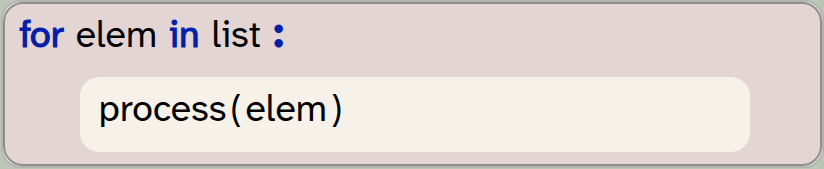
for elem in list:
    process(elem)
This is fine when we can process every element separately, in isolation, but is not sufficient when we need to compare the element to other neighbouring elements. One option to solve this problem is using a loop with an index:
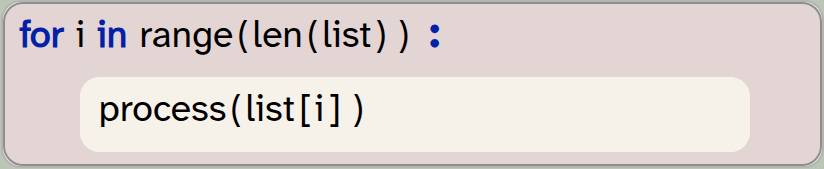
for i in range(len(list)):
    process(list[i])
Here, the loop variable does not iterate over the list elements. Instead, the loop variable is an int, and it iterates over all the valid indices of the loop. (Remember: range(n) includes all values 0 .. n-1, and list indices are 0 .. len(list)-1, so range(len(list)) gives us exactly all the valid indices.)
Iterating over the indices of a list (rather than the elements themselves) gives us more flexibility to access several different elements in each iteration.
An advantage with this loop now is that we can also access list elements other than the current one by writing, for example, list[i-1].
If we want to use this pattern for finding the temperature differences, as discussed above, we have to modify it slightly, since we would like to start the loop with the second element. We can achieve this by using the range function with two parameters, for the lower and upper boundaries:
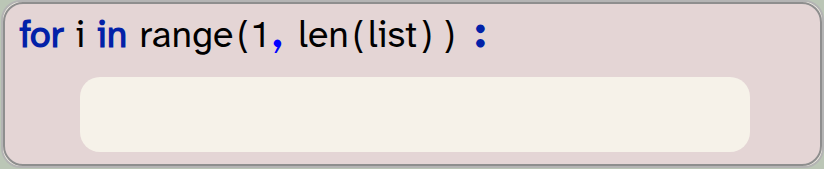
for i in range(1, len(list)):
    pass
In this variant, the first time the loop body executes, it will access list[1], which is the second element.
Next, we look at how we can tell the difference between the current and previous days. To compute the difference between two values a and b, we can subtract the values from each other and then use the abs(n) function. abs(n) is a built-in function, and it returns the absolute value of n (that is, the positive equivalent, if n was negative). It is necessary to use the absolute value, as the temperature may go up or down, so the value of a-b might be positive or negative.
The built-in abs(n) function returns the absolute value of n.
Putting these pieces together, we get a loop that looks like this:
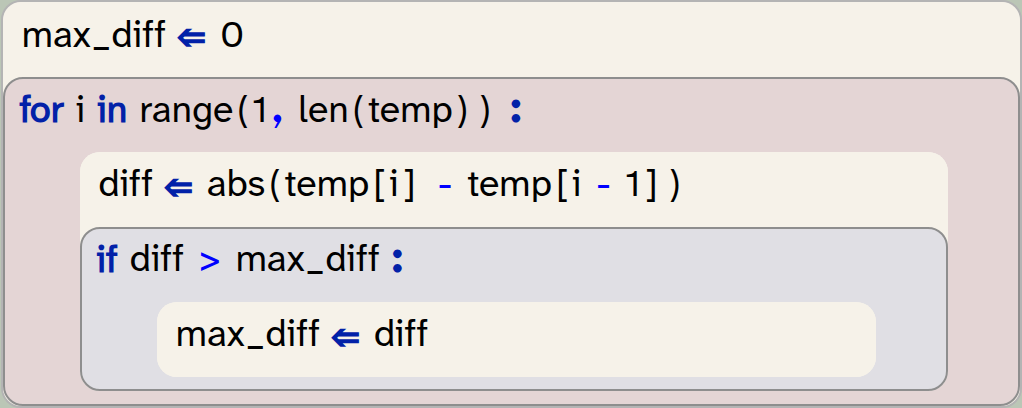
max_diff = 0
for i in range(1, len(temp)):
    diff = abs(temp[i] - temp[i-1])
    if diff > max_diff:
        max_diff = diff
Names of loop variables: We have previously said that you should always choose meaningful names for variables. Yet in the code above, we have used the name i for the loop variable. This is not an accident: Traditionally, i is often used for a loop variable of type int if it is used as an index. This is so common, that i for an index loop variable is actually a meaningful name – every practiced programmer will understand it. This also means that you should use i as the name only if the variable is a loop variable used as an index.
Exercise 4.6 Look at the code above and explain it in your own words. Write down this explanation.
Exercise 4.7 Implement the code above in your own program and print out the biggest temperature change in the year.
Exercise 4.8 If you have not already done so, make sure that the code from the previous exercise is in its own function (perhaps called biggest_change(list)).
Exercise 4.9 Change your code so that it does not find the biggest temperature change, but instead the day number on which the biggest change occurred. Print it out. Which day is it?
Exercise 4.10 Change your function again so that it finds both, the largest temperature change and the day on which it occurred. (Hint: The return statement used in a function can return more than one value: return a, b.)
An implementation of the exercises discussed in this section is in the project temperature-v3.
4.5. Enumerating lists
Another option we have available when we need the index of each list element is to use the enumerate(list) function:
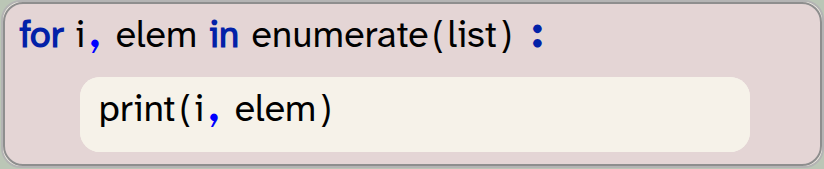
for i, elem in enumerate(list):
    print(i, elem)
Try this code with your temperature list and see what it does. This experiment should show you the following:
-
The enumerate(list) function returns two values: the index and the element value of each list item.
-
We can use a for-loop with two loop variables to receive these two values.
-
In the loop body, we can then use the value and the index of each element. (Here, we just print them out.)
The enumerate(list) function can be used for an iteration that gives us both the index and the value of each element. To do this, we use a for-loop with two loop variables.
Exercise 4.11 Try to rewrite your biggest_change function using the enumerate function in the for-loop instead of the range function. Print out and check the result. Is it the same as before?
A first attempt of using this function for our goal might look like this:
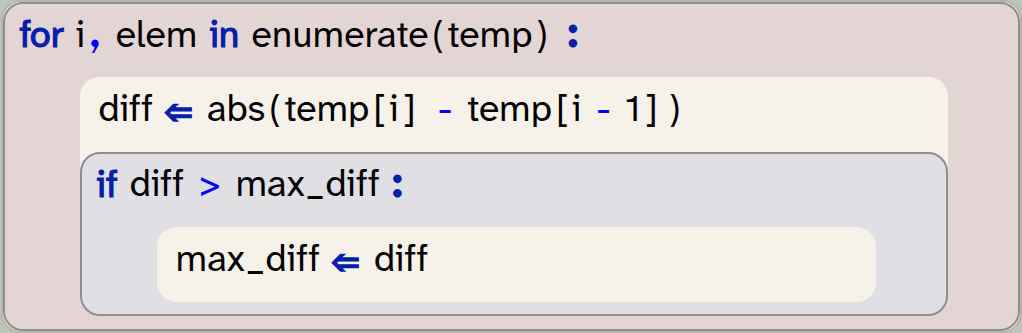
for i,elem in enumerate(temp)  :
    diff  = abs(temp[i] - temp[i - 1])
    if diff > max_diff :
        max_diff  = diff
However, if you run this code, you will notice that it gives us a different result than our code in the previous section (using the range function).
Exercise 4.12 Make a note of the biggest one-day temperature change as computed by the version in the previous section (using the range function). Then implement and test this version shown here. You will note that the result is not the same. What are the results that are reported by each version? Can you explain why they are different? Which version is correct?
The reason it goes wrong with this version is the loop boundaries. In Section 4.4 we have emphasised that we need to start the iteration with the second element (index 1), so that we can compare to the element before it, using i - 1 as the index. The enumerate function, however, invariably starts with the first element. Thus, when the loop executes for the first time, i will be zero, and the first line in the loop body computes the difference as temp[0] - temp[-1].
Now you can probably see the problem: We are trying to access an element with a negative index: temp[-1]. What does this do?
4.6. Negative indices
In many programming languages, using a negative index in a list is an error. Valid indices in many languages are from 0 to len(list)-1.
In Python, however, negative indices are allowed: If we use a negative index, the index is counted from the end of the list. Thus, index -1 accesses the last element, -2 the second-last element and so on.
Exercise 4.13 For a quick test of negative indices, print out the last and the second-last element from your temperature list.
Exercise 4.14 Can you now explain what happened in the enumerate loop above?
The answer to the question which of the two versions calculating the largest temperature change is correct is that the second version is wrong. When we used the enumerate function, we compared the first day of the year to the last day of the year – two days that did not follow each other. To compute the correct answer, we need to start the loop with the second list element, and the enumerate function does not do that.
A lesson from this discussion is this: In most cases when we need access to the index of our elements during a loop, using the enumerate function is the easiest solution. If, however, we need to control the start or end of the iteration to not include all elements, then we need to generate the index ourselves, using an int loop variable and the range function.
Using a negative index for a list counts the element index from the end of the list. Index -1 is the last element, -2 is the second-last element, and so on.
4.7. Calculations with lists
In the previous chapter, we have deferred two problems for later: the first was translating a day number to a more readable date format. We can print out the day number of a day, but we don’t really know what date this represents.
The second problem was that we had to know the day numbers of the start and end date to specify months for slicing. If, for example, we want the slice of the list representing the data for July, we have to know that the first of July is day 181, and 31st July is day 212. This is not something we could easily know or calculate.
Let’s start by looking at the second problem and see how we can automatically calculate the start and end day numbers for a given month.
We start our solution by creating a list that holds the numbers of days for each month. (This is slightly simplified, because we are ignoring leap years. But it works for our data, since 2025 was not a leap year.)

month_lengths = [31,28,31,30,31,30,31,31,30,31,30,31]What we actually need, however, is not the length of every month, but a list with the day number of the start of every month. We can create such a list by going through our list of month-lengths and adding up the day numbers. Figure 4.1 illustrates this idea.
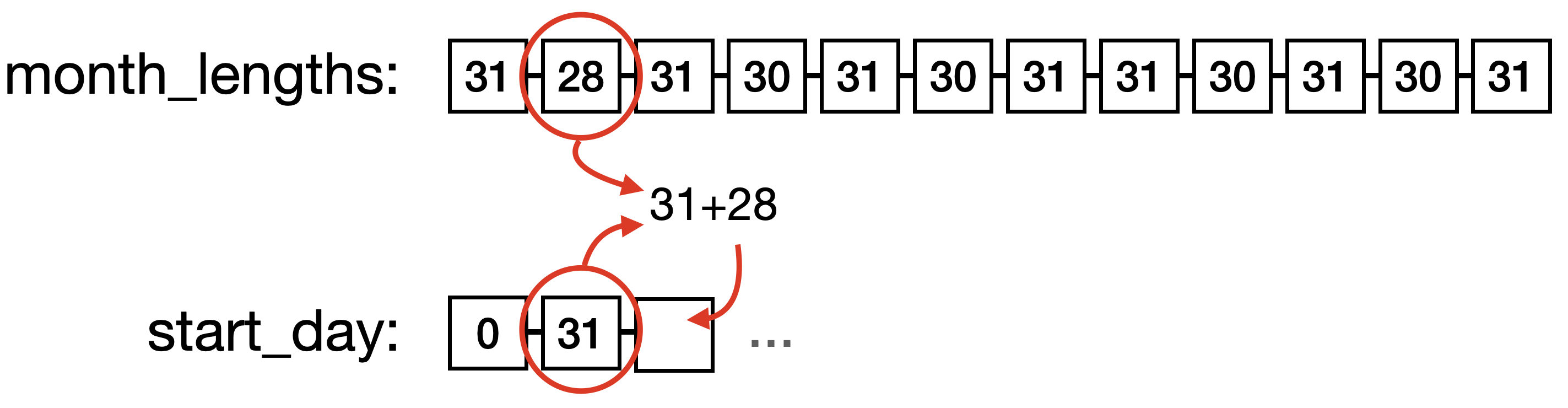
In our new list, start_day[0], for example, is that start of January, start_day[2] is the start of March, and start_day[11] is the start of December.
To create this list, we start with a list that just contains 0 as the start index for January. Then we create the rest of the list by adding the number of days of each month to the last value in our new list, as shown in Figure 4.1. The code to achieve this looks like this:
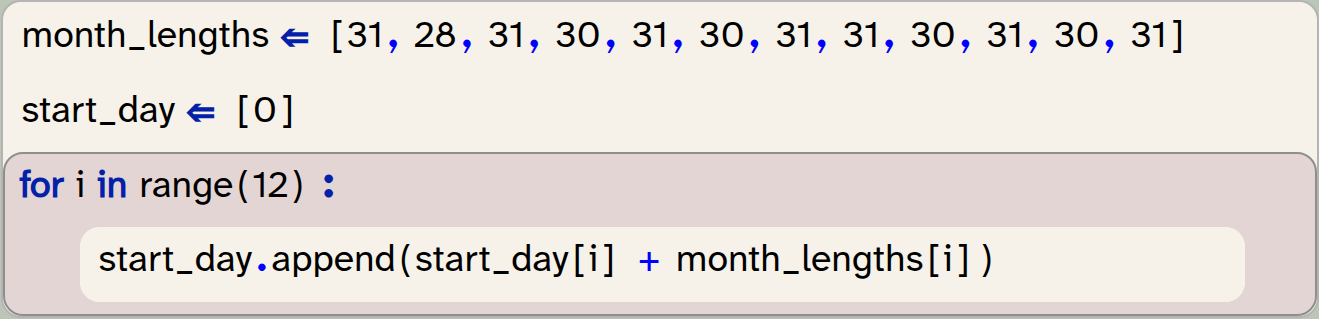
month_lengths = [31,28,31,30,31,30,31,31,30,31,30,31]
start_day = [0]
for i in range(12):
    start_day.append(start_day[i] + month_lengths[i])
You may have to think carefully about this idea to fully understand it.
Exercise 4.15 Play the algorithm above through using pen and paper. Draw the month_lengths list. Then draw the start_day list as it is at the beginning. Then go step by step through the code above and modify your drawing with every step to show the effect of that code.
Exercise 4.16 Implement the code above in your own program. At the end, print out the start_day list – does it look like you expected?
Exercise 4.17 How long is this list? Do you have an idea why we made it this length?
This list is now very useful for creating slices of data for a specific month. Every entry in this list, together with its next value, now tells us exactly the start and end of the slice for a month. Note that we have created this list with 13 values (not 12), so that December also has a following value to mark its end.
We can now write a function that gives us a slice for a given month:
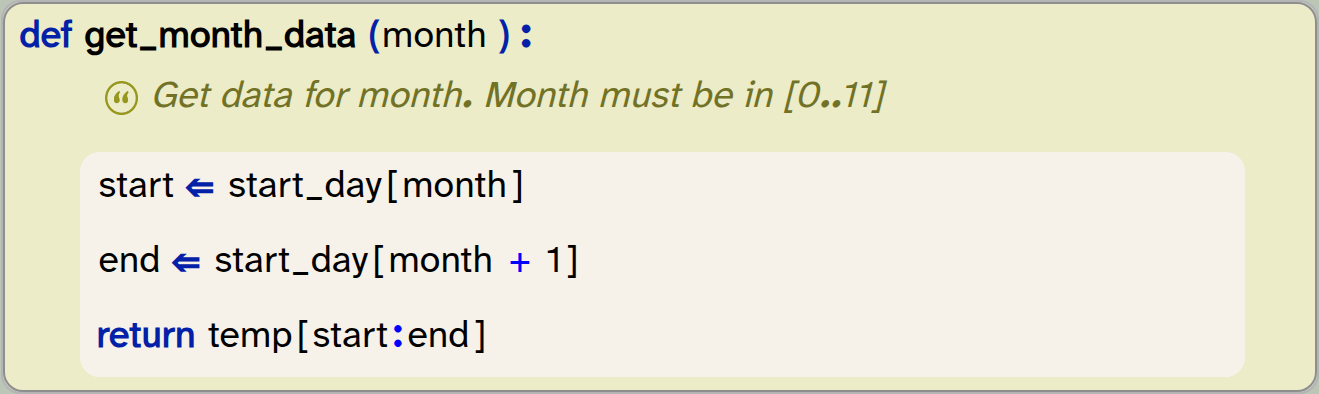
def get_month_data(month):
   '''Get data for month. Month must be in [0..11]'''
   start = start_day[month]
   end = start_day[month+1]
   return temp[start:end]
This function can be called with a number for a month, and it will return the sliced list with the temperature values for that month. For example, get_month_data(0) will return the data for January.
Exercise 4.18 Implement the function shown here in your own program. Test it by printing out the values for December. The temperature for the 1st of December should be 10.7 degrees.
Exercise 4.19 Find and print the temperature of the warmest day in December.
Exercise 4.20 One minor annoyance is that the month numbers are out by 1 compared to what we commonly use. For example, we have to write 2 for the March data, but we normally refer to March as 3. Modify your get_month_data function so that we can use normal month numbers (i.e. 1 for January, 12 for December, and so on).
Exercise 4.21 You can now call your get_month_data function with values 1 to 12 as parameters. What happens if you use an invalid parameter, for example 14, or -1? Try it out.
Exercise 4.22 Modify your function so that it prints out an error message if it is called with an invalid parameter and works as before if the parameter is valid.
An implementation of the exercises in this section is in the project temperature-v4.
There are many possible extensions to this project. We could, for example, modify our function to accept names of months, rather than a month number, and then use another list of month names to find the index of a given month by searching for the name. We can also use the same start_day list that we have used here to write a function that maps a day number to a date as a day/month pair. These are interesting exercises, and we leave it to the curious reader to work on them.
Instead of discussing more possibilities of processing our list of numbers, we will – in the next chapter – look at how we can use lists for other types of data. We will do so by looking at some graphical programs again.
4.8. Summary
In this chapter we had a closer look at working with the data in lists, especially for cases where no ready-made standard functions are available. In this case, we often write loops that iterate over the list and process every element. Writing such loops is an important skill for every programmer.
-
Iterating over the indices of a list (rather than the elements themselves) gives us more flexibility to access several different elements in each iteration.
-
The built-in abs(n) function returns the absolute value of
n. -
The enumerate(list) function can be used for an iteration that gives us both the index and the value of each element. To do this, we use a for-loop with two loop variables.
-
Using a negative index for a list counts the element index from the end of the list. Index
-1is the last element,-2is the second-last element, and so on.
Graphical plotting
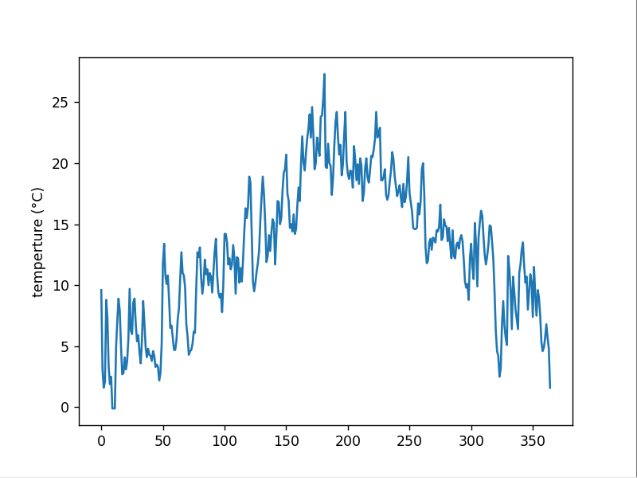
One thing we have not yet done with our temperature data (but which is quite an obvious idea) is to plot the data as a graph.
Here is a project that does just that: temperature-plot.
This project uses the same temperature data we have used in this chapter, and then turns it into a graph. Plotting the data graphically is easier than you might expect, as there are good libraries available that do all the hard work for you. In this case, we use the library matplotlib.pyplot, which does the work for us.
If you want to do more with this, have a look at the pyplot documentation here (or search the web for "Pyplot tutorial" if you are reading this on paper). You will see that you can generate sophisticated graphs quite easily.
Chapter 5. Lists in the graphics world
In the previous chapters, we worked with lists of two different element types: we saw lists of strings and lists of numbers (floats). Here, we move on to look at lists of other types: actors, in this case. Doing so will teach us something more about handling lists, and data in general.
We start by looking at a simple graphical game project. In Volume 1 of this book series (Creative Python Programming with Strype, Volume 1:
Getting started with Python), we have seen that our graphics programs deal with actors (objects of the Actor class) to show various elements on screen. Using lists of actors enables us to improve our game.
We will start by looking at a project named Space Rescue.
5.1. The Space Rescue project
If you have read Volume 1 of this book series, you will quickly realise that the Space Rescue project (Figure 5.1) is essentially a copy of the Yellow Fish game with different graphics. Start by investigating it.
Exercise 5.1 Open the space-rescue game from the book projects. Run the program and investigate it. If you have not seen it before, also open and run the yellow-fish-v6 project from Chapter 7 of Volume 1. How are these two projects similar? How are they different?
This exercise will have shown you that these two programs are quite similar. When moving from Yellow Fish to Space Rescue, we have changed the colour of the background, the graphics and some of the sounds, but the code is almost identical. The only two changes to the functionality are:
-
The asteroid (which previously was the shark), does not turn when it reaches the edge of the screen, but instead appears on the opposite edge.
-
We have added an end-of-game scene that lands the rocket on a planet when the player wins the game.
Exercise 5.2 Examine the source code of the Space Rescue game. Find the place where the behaviour of the asteroid at the edge of the screen is implemented. Make sure that you understand this code. Explain how it works.
Exercise 5.3 Find the code that implements the end-of-game landing scene. What is the function called that implements this?
Exercise 5.4 Does this project use any constructs you are not familiar with? If so, what are they?
5.2. Rotating the astronauts
One small improvement to the game we can now make is to animate the astronauts. Currently, they do not move at all, which makes the scene very static. Since they are floating in space, we might start by making them slowly turn on the spot.
Exercise 5.5 Find the place in the program where the astronauts are created. What variable is the astronaut actor assigned to? Where else is that variable being used?
With the investigation in the previous exercise, you will have seen that the astronaut actor is being created and assigned to a variable, which is then never used. The variable is essentially discarded in our program. This is not a problem: The astronaut actors remain in the game, because they are held in the graphics world, and we can later get them back from there.
Let us prepare our task by initially rotating every astronaut to a different value, so that they are not all facing the same way.
Exercise 5.6 In the loop that creates the astronauts, use the set_rotation(rotation) method of the astronaut actor to assign a random rotation to the actor immediately after it is created. The rotation is specified in degrees, so the random value should be between 0 and 359. (360 would be the same as 0.)
5.3. Lists of actors
We can now make all astronauts slowly turn by calling the turn method on each actor in every step of our main loop. To do this, we first need to get access to our astronauts again. Luckily, this is quite easy: the graphics world maintains a list of all actors in the world, and the strype.graphics library includes a function called get_actors() that can be used to get access to this list. We could, for example, get a list of all actors by simply writing

all_actors = get_actors()The function has an optional parameter to provide a tag. If a tag is provided, only actors tagged with this tag will be returned. If you check the line where we created the astronauts, you will see that we used the tag "astronaut" for each of our astronaut actors, so we can now use this in our function call:

astronauts = get_actors("astronaut")This call will give us a list of all astronaut actors.
The graphics system maintains a list of actors. We can obtain a list of all actors, or of selected actors, by using the get_actors() function.
Exercise 5.7 Find the get_actors() function in the library documentation. What is the default value of its parameter?
Exercise 5.8 Create a new function move_astronauts() (to mirror the move_rocket() and move_asteroid() functions). The function body can initially be empty. Make sure to call this function from your main loop.
Exercise 5.9 In this new function, use the get_actors() function to get a list of astronauts. Then write a for-loop that iterates over the astronauts list and makes each astronaut turn 1 degree. Test your program. Do the astronauts turn?
Exercise 5.10 Write an appropriate function comment for your new function.
5.4. Working with a list of astronauts
Your astronauts should now be slowly turning while they are floating in space. The next thing that we will add is to make them all re-appear on the surface of the planet after the rocket has landed. One problem with this in our current version is that we do not keep hold of the astronauts after they have been collected – they are essentially deleted as soon as they are collected by the rocket. Therefore, we are not in a position to re-add them into the world. We will first change this by keeping a list of all astronauts, and then we can add them again later.
Exercise 5.11 Add a variable called astronauts and assign an empty list to it. The place to create this variable is at the beginning of the "Definitions" section (where the score variable is also initialised).
Exercise 5.12 In the loop that creates the astronauts, add each new astronaut to the astronauts list.
Now we are in a position where we have kept our own list of all astronauts (independent of whether they were already collected or not), and we can now put them back into the world at the end of the game.
Exercise 5.13 Add a for-loop to the landing function, after the rocket has landed, to add the astronauts from our list back into the world. To place an actor back into the world after it had been removed, you can use the re_add(x, y) method of the actor:

astronaut.re_add(randint(-360,360),randint(-260,260))Choose your values for the randint function so that they are placed at random locations on the surface of the planet.
When you run your program, you will notice that the 10 astronauts all appear at once. This is because the for loop is so quick that we see them all appear at essentially the same time. To make this visually more interesting, we can slow down the execution of this for loop, using the pace function, to make the astronauts appear more slowly, one after the other.
Exercise 5.14 Set the pace of this new for-loop to 5, so that it executes slowly enough for you to see the astronauts appear one at a time.
Exercise 5.15 Add the playing of the click sound (the one that is used when an astronaut is picked up) into this loop. (You can do this by duplicating this line and then dragging it into place.)
A copy of the project with these changes implemented is in the book projects as space-rescue-v2. Compare this project to your own and see how your code differs from ours.
When you carefully inspect the creation of the astronauts and compare it to the creation of the shrimp in the Yellow Fish project, you might have noticed one further small difference: In the fish version, we wrote:

for count in range(0, 15):
    shrimp = Actor(image_literal,randint(-360,360),randint(-260,260),"shrimp")
while in the space version we changed this to

astronaut_image = image_literal
for count in range(10):
    shrimp = Actor(astronaut_image,randint(-360,360),randint(-260,260),"astronaut")
The main change here is the assignment of the image outside the loop. If we use the image literal inside the loop, we are creating 15 separate shrimp images, each taking up space. They all show the same picture, but they are all separate image instances. If, on the other hand, we use the image literal outside of the loop, only one image is created. This same image is then used ten times for all the different actors. This is much more efficient than using multiple images unnecessarily. Using many separate images can slow down the execution of your program, especially if the images are large.
With this series of exercises, we have seen how the graphics world uses lists to work with the actors and how we can use these lists to deal with more than one actor at a time. We can also use our own lists of actors if we want to keep them when they are no longer in the world. Again, lists are useful here to process a collection of items.
There are, however, two more things to discover in this project, which we should discuss before we move on.
5.5. Constants
One thing you may have noticed if you read the code carefully is that we have a variable that is written in capital letters:

NUM_ASTRONAUTS = 10This style looks different from the way we have named our variables previously, and in Python it has a special meaning: it means that this value is a constant.
A constant is very much like a variable – it holds a value that you can assign to it – but the difference is that this value is intended to never change. It will always be the same throughout the whole execution of the program.
Many programming languages have a special language construct to declare a constant. You can then assign a value once, and never change it after that. The system would report an error if you tried.
Python does not have such a construct. Instead, we use a convention. By convention, when variables are written in capitals, they are intended to be constants. This is a very common and very widely used convention: just about all Python programmers follow it. This means two things for you:
-
First, when you see a name in capital letters, you can usually assume that it is constant.
-
Secondly, you should follow those rules in the code that you write: Use capital letters for your own constants, and never change the value of a constant at runtime.
Python does not prevent you from changing the value – technically, constants are just variables – but you will confuse every Python programmer if you do.
A variable written in capital letters is considered a constant. Values of constants should never be changed. Python does not enforce this, but it is bad practice to do so.
There are several reasons why you might want to use a constant in your program. The first is that it can make your code more readable. Imagine you read this fragment of code:
for i in range(14):
   ...
In this case, you do not immediately know what the number 14 means. Why 14?
If instead, it says
for i in range(NUM_ASTRONAUTS):
   ...
then it is much clearer. The value itself may still be 14, but you now know immediately that this loop is linked to the number of astronauts in the game. Constants can give names to your values, and make your code easier to read.
Secondly, you may have used the number of astronauts at multiple places in your program. Should you later change your mind and decide to show 20 astronauts, you now have to find all the places in the program where that number is used, and change it to 20 in each place. In larger programs, this can be challenging. If, instead, you used a constant, you can change the value one single time, and it will automatically be used wherever it is needed.
Thus, constants make your code better in two ways: They make the code more readable, and they make it easier to maintain.
Using constants in your program improves code quality: they make a program more readable and easier to maintain.
Exercise 5.16 Is there another variable in this program that could or should be a constant? Discuss.
 Good programming practice: Avoid magic numbers; use named constants
Use named constants to attach names to specific values. Avoid having arbitrary numbers in your code; instead, name them to describe what they are and use the named constant where the value is needed.
5.6. Global and local variables
The other new construct you may have noticed in the source code of the space-rescue program is the use of the term global:
def move_rocket():
    global score
    ...
This construct has to do with the difference between global variables and local variables.
Python distinguishes global and local variables and keeps them separate. Local variables are those declared inside a function. If you introduce a variable inside a function body, it is automatically local, and it can only be used inside that function. In fact, it does not survive after the function ends: when the function exits, the local variable is deleted (and next time the function runs, an entirely new variable is created).
Global variables, on the other hand, exist for the whole time the program runs. They are the ones that are created outside of functions (in the "My code" section or directly in the "Definitions" section, outside of a function definition).
A global variable is a variable declared at the outer level of your program (outside of function or class definitions). Global variables hold their value throughout the entire run of a program.
A local variable is a variable that is declared inside a function. It is created every time the function executes, and is destroyed when the function ends.
Exercise 5.17 In the space-rescue program, find an example of a global variable. Find an example of a local variable.
To investigate the relationship of global and local variables a bit more, consider this code:
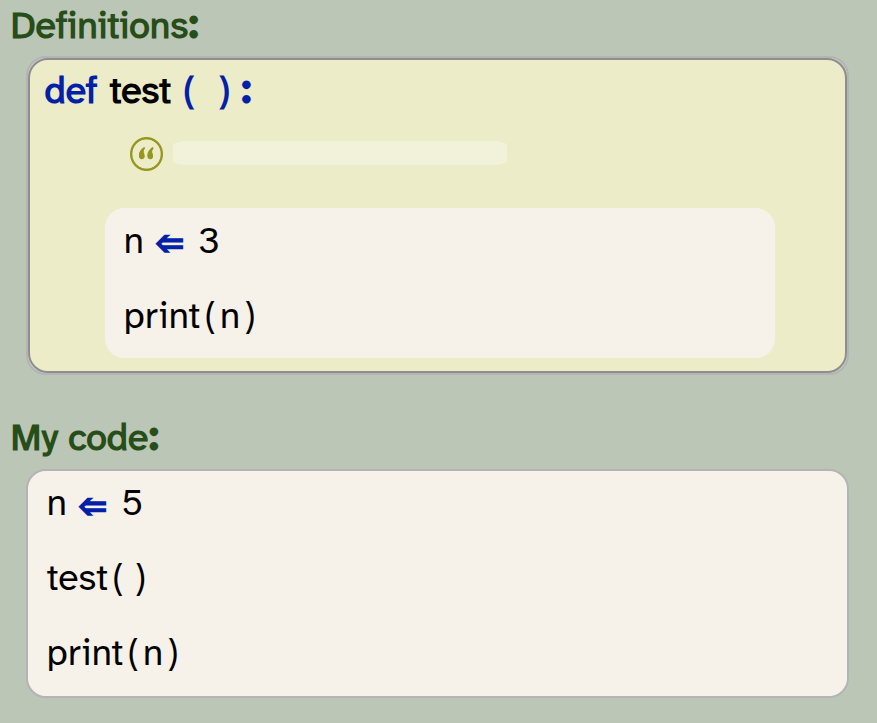
def test ( ) :
    n = 3
    print(n)

n  = 5
test()
print(n)
Exercise 5.18 For the code shown above, predict what the program will print.
Exercise 5.19 Create a new project for this experiment and type in the code shown above. Run the program and compare the output to your prediction. Were you right?
Exercise 5.20 Try to explain why the output is what it is.
The result of this experiment can be puzzling at first. The reason we see two different values printed is that Python keeps global and local variables completely separate. As you can see here, you can even have two variables with the same name! The assignment n ⇐ 5 creates a global variable, and the assignment n ⇐ 3 creates a local variable (because it is inside a function). The fact that these have the same name does not matter – they are two separate variables.
5.7. Accessing global variables in a function
Now insert the declaration global n at the beginning of your function:
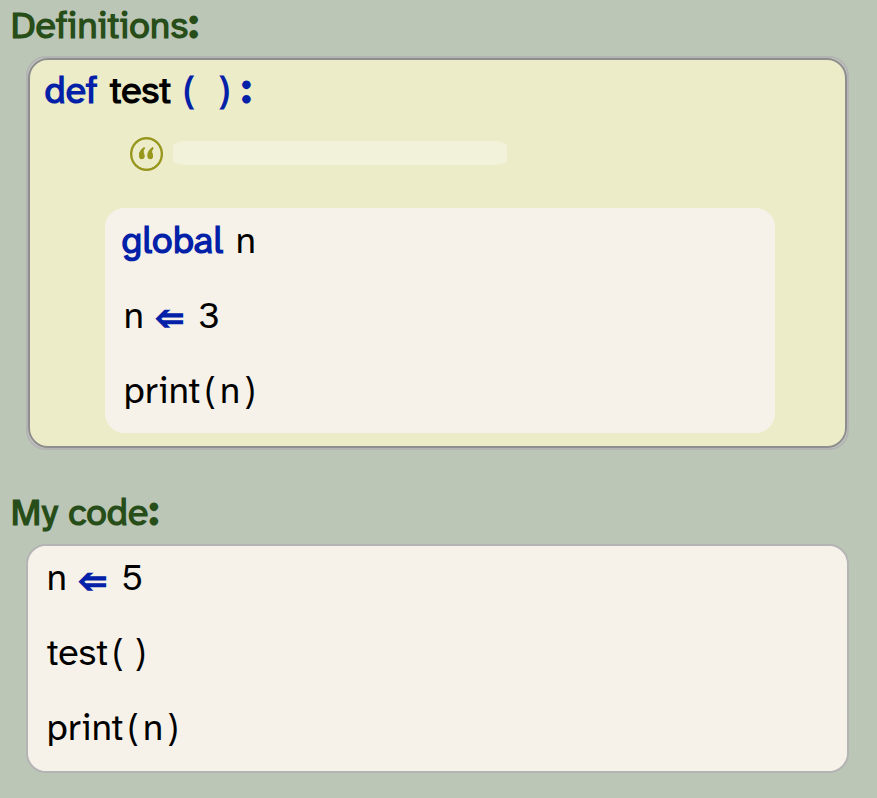
def test ( ) :
    global n
    n = 3
    print(n)

n  = 5
test()
print(n)
Exercise 5.21 Predict what will happen when you run your program after the change shown above.
Exercise 5.22 Try it out: make this change in your code and run your program. Discuss what you see.
Exercise 5.23 What happens when you change the assignment in the test function from n ⇐ 3 to n ⇐ n + 1? Predict the outcome, and then test it.
Exercise 5.24 What happens when you now remove the global n declaration again? Try it out.
When we use the global n declaration inside the function, we are saying that we want to use the global variable n, instead of creating a new, local variable.
The result of the Exercise 5.24 can be quite confusing. The reason here is the following:
-
We now have no
globaldeclaration in our function. Therefore,nis a local variable. -
Local variables are created when the function starts. Initially, they have no value (until you assign a value to them).
-
In the assignment
n ⇐ n + 1, Python first evaluates the right-hand side of the assignment:n + 1. Here, we try to read the value ofn, but this variable does not yet have a value – we have not assigned one yet. Thus, it causes an error when we try to read this variable.
The error you see here is called an UnboundLocalError (you can see this in the error message). It is useful to remember this error and its cause – you are likely to see it again.
The declaration global var_name used inside a function makes every use of the variable name var_name afterwards refer to the global variable var_name instead of referring to a local variable.
Exercise 5.25 In the space-rescue-v2 program, find a use of the global declaration. Explain why it is needed here.
Exercise 5.26 Remove the use of the global declaration from the program and run it. Explain the error you see.
Good programming practice: Keep variables local
A good rule to improve the quality of your code is to use local variables whenever you can. If a value is used only inside a function, you should use a local variable. Use global variables only when necessary. Use of global variables has the effect that your program is harder to understand, and harder to adapt. You can often avoid global variables by passing values into functions as parameters when you need the value, and returning them if you need to modify the value in the function.
5.8. Summary
In this chapter, we have seen another use of lists in Python: lists of actors. We can generalise this idea: Lists can hold elements of any type in Python. We have also seen that the graphics world automatically maintains a list of all actors in it, and that we can obtain this list (either a list of all actors, or lists of selected actors).
In the example we discussed here, we also saw two new concepts: We saw how to make use of constants, which are written in capital letters, and we looked at global versus local variables. We have seen that local variables exist only within a single function, while global variables are available throughout the program.
-
The graphics system maintains a list of actors. We can obtain a list of all actors, or of selected actors, by using the get_actors() function.
-
A variable written in capital letters is considered a constant. Values of constants should never be changed. Python does not enforce this, but it is bad practice to do so.
-
Using constants in your program improves code quality: they make a program more readable and easier to maintain.
-
A global variable is a variable declared at the outer level of your program (outside of function or class definitions). Global variables hold their value throughout the entire run of a program.
-
A local variable is a variable that is declared inside a function. It is created every time the function executes, and is destroyed when the function ends.
-
The declaration global var_name used inside a function makes every use of the variable name var_name afterwards refer to the global variable var_name instead of referring to a local variable.
Piano
We worked a lot with lists in the last chapters, and you may have got an understanding how to use lists and what they can do. Here, we have a project called piano which shows some other ways to use lists. The project implements a simple piano (which you can play with your keyboard), and in doing so it makes use of lists of strings, actors and sounds.
You may like to study this project code to see how this is done.
Chapter 6. Manipulating sounds
Sounds, too, are lists. In a computer, all sounds are stored as a list of samples – essentially a long list of numbers which represent the amplitude of the sound at a given time.
Samples can be read from a sound input, such as a microphone, and stored as a list. When these samples are read and stored quickly enough, we get a sound recording, and we can play it back later. Thus, working with sound again just requires the computer to work with numbers, to be fast and to be able to store large amounts of data.
Start by opening a project with a sound in it. We have provided such a project in the book projects; it is called sounds.
Exercise 6.1 Open the sounds project. Add a statement to play the sound in it.
6.1. Sounds as lists of samples
In our project, we have a sound object. We can get the list of samples that makes up this sound by using the sound’s get_samples method.
Exercise 6.2 Look up the get_samples method in the library documentation. It is a method in the Sound class. What is the range of possible values?
Exercise 6.3 Write some code to get the samples from the sound in the project. Print out the length of the sample list. How many samples does it contain?
Exercise 6.4 Print out the list of samples. What is the type of its elements?
Exercise 6.5 The sample rate is the number of samples that is recorded per second. Calculate and print the sample rate for our sound. You can do this by dividing the number of samples by the length of the sound in seconds. (You can get the length by calling the sound’s get_duration() method.)
Exercise 6.6 The Sound class also has a get_sample_rate() method built in. Call this method and compare it to the sample rate you calculated in the exercise above. Do they match?
A sound is stored as a list of samples. We can get the list of samples from a sound object using the get_samples() method.
A sample rate is the number of samples per second that is recorded for a sound. The higher the sample rate, the better the quality of the recording (and the larger the file when we save it).
6.2. Recording your own sounds
Instead of using the "Hello" sound currently stored in the project, record your own sound to use for this chapter. For now, use a word or a short phrase.
You can record your sound directly in Strype. Delete the sound literal that is currently in your program, and leave the cursor in the value slot on the right-hand side of the assignment:

hello = blankYou can then click the "Record sound" option in the top right of the Strype window (or use Space s on your keyboard) to bring up the sound recorder and record your sound. Once you have done this, play the sound back (and re-record it if necessary, until you are happy with it).
When you record a sound from a microphone, it usually has some silence (or unwanted noise) at the beginning and end. Use the trimming function (the red handles at the sides of the sound graph, Figure 6.1) to cut off the unwanted parts; only the section between the red bars will be used. If we do not do this, the sound will appear to play with a slight delay, because it will play the initial silence as well.
Once you press OK, the sound will be inserted into your code.
Exercise 6.7 Record your own sound, trim it, and insert it into your code. Play it to make sure you are happy with it.
Exercise 6.8 If you left your variable name as hello, then this name is now probably inaccurate. Rename your variable to a sensible name.
Exercise 6.9 What is your sound’s length? What is its sample rate? Print out this information, with appropriate text to explainb what is printed.
6.3. Playing backwards
The first experiment we can do to manipulate our sound is to play it backwards. We can do this by reversing our samples list. Reversing a list is straight forward – the List class has a reverse() method that reverses the order of the values in a list:

samples.reverse ()Exercise 6.10 In your program, get the samples list from your sound. Play the sound. Then reverse this list, and play the sound again. Is the sound now playing backwards?
Depending on how exactly you wrote the code for the exercise above, this may or may not have worked. Let us look at the required code in more detail. A first attempt to reverse our sound might look like this:
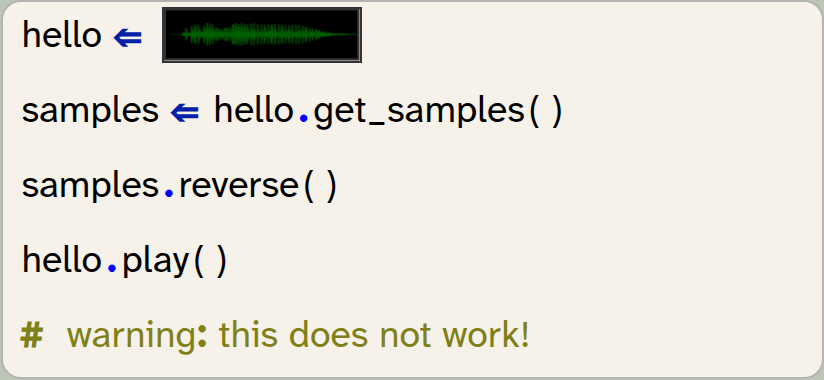
hello = image_literal
samples = hello.get_samples()
samples.reverse()
hello.play()
# warning: this does not work!
As the comment in the code snippet says: this does not work. The reason for this is that the get_samples() method gives us a copy of the sound’s samples. So by reversing the list, we are reversing the copy, but we are not changing the original sound.
We can fix this problem by creating a new sound from the reversed sample list and then playing the new sound:
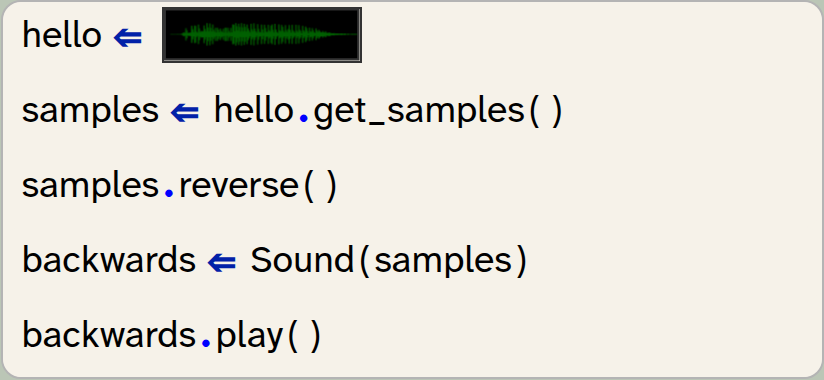
hello = image_literal
samples = hello.get_samples()
samples.reverse()
backwards = Sound(samples)
backwards.play()
We see here that we can create a sound, using the Sound class’s constructor (writing the class name Sound with a parameter list), and providing the list of samples as the parameter.
A sound object can be created from a list of samples by using the statement Sound(sample_list).
Exercise 6.11 Implement the code shown above: reverse the sound and play it backwards.
6.4. Repeating a sound effect
We can now also make other modifications to our sound using the same pattern: modify the sample list, then create a new sound from the new samples.
Let us start by duplicating the sound. We can duplicate a list by using the multiplication operator: *. For example:

my_list = [1,2,3]
my_list = my_list * 2
will duplicate the list so that it contains its elements twice. The list then is:
[1,2,3,1,2,3]
We can also use the plus operator to append one list to the end of another:

my_list = [1,2,3]
my_list = my_list + [6,7,8]
Let us experiment with this. Write some test code for the exercises below.
Exercise 6.12 Create a short list of numbers. Use the * 2 operation to duplicate the list and print it out.
Exercise 6.13 Try the same with multipliers other than 2.
Exercise 6.14 Use the + operator to add two lists together. Print out the result.
Exercise 6.15 Let’s get back to our sound sample list. Duplicate the sample list and create a new sound with the new list. Play the sound. What happens, compared to the original sound?
List addition: We can join two lists together to form a single list by using the + operator: list1 + list2.
List multiplication: List elements can be repeated multiple times to form a new list by using the * operator: list1 * 3. For example, [0, 1, 2] * 3 will produce [0, 1, 2, 0, 1, 2, 0, 1, 2].
6.5. Stutter effect
An effect that is often used as part of music is to play the start of a word repeatedly before playing the whole word. For example, if your original sound is the word "Hello":
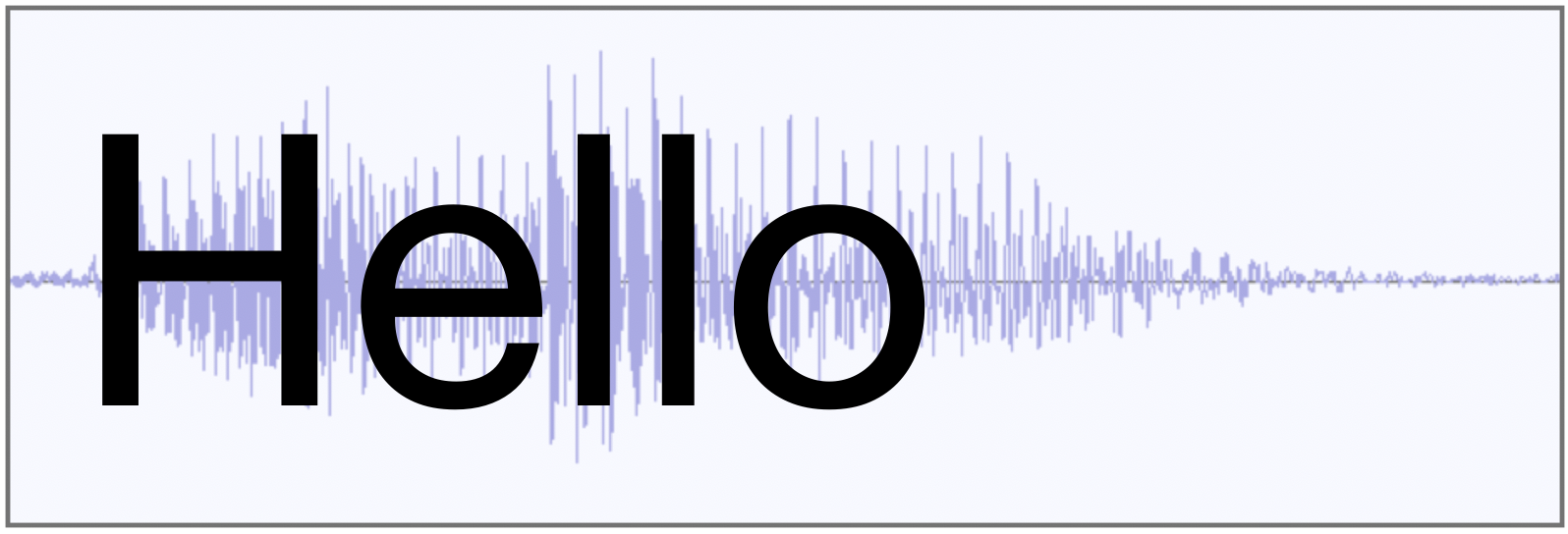
then the stutter effect turns it into this:
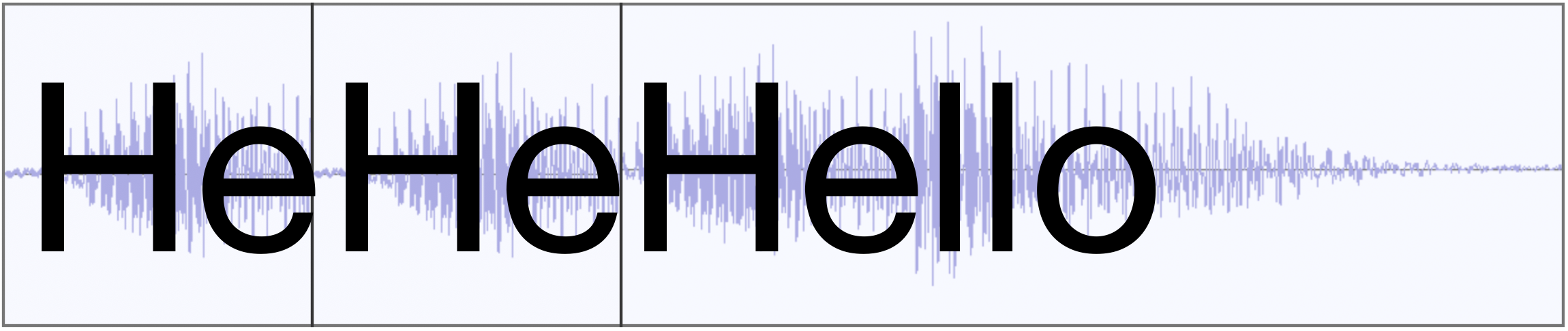
As you can see, we will have to take a copy of the first part of our sound, multiply it to play it several times, and then append the original sound.
Remember that we can use slicing to create a copy of a part of a list. For example samples[:9000] will create a list holding the first 9000 elements of the samples list.
Exercise 6.16 Implement the stutter effect in your own project. Use slicing to create the prefix sound, multiplication to repeat the prefix, and addition to append the whole sound. Test it and make sure that it works.
Exercise 6.17 Try the effect with different numbers of repetitions for the prefix.
Exercise 6.18 Make a function for producing and playing the stutter effect. The function should have two parameters: the original sound object, and a parameter called count which specifies how often the prefix sound should be repeated. For example, play_stutter(hello, 4) would play the hello sound with 4 repetitions of its partial word first. In your 'My code' section, just call this function.
Exercise 6.19 Add another parameter to your function to specify the length of the prefix part of the effect (the number of samples for the prefix). Test it.
Exercise 6.20 If you still have the code for the backwards playing in the 'My code' section of your project, it is time to clean up now: Make a separate function for backward playing as well and move your code into it.
A version of this project with an implementation of these effects is available in the Chapter 6 folder as sounds-v2.
6.6. Pitch change: double speed
Next, we will create a "cartoon voice" sound effect. This effect plays the sound sample at double speed. This has two consequences: the sound will be shorter, and the pitch will be higher. (The pitch is how high or low a voice sounds.)
Looking at our sound sample list, the idea is very simple: we can simply delete every second sample in our list. If we then play the remaining samples at the same frequency, the sound is half the length, and we can observe how this changes the pitch.
Thus, for our program, the obvious question becomes: How do we best create a list that includes only every second element from the original samples?
It turns out, slicing comes to the rescue again.
The slicing operator has a third optional parameter which we have not used yet. A full slice definition with this parameter looks like this:
list[start:end:step]
As we have seen previously, the first two parameters specify the beginning and end of the slice we wish to create. The third parameter is a step size: A step size of 2, for example, will select every second element, a step size of 3 selects every third element, and so on.
Consider, for example, the following code:

my_list = [1,2,3,4,5,6,7,8,9,10,11,12]
print(my_list[2,9,2])
This code snippet will select elements from index 2 to index 9, with step size 2. Thus, it will print
[3, 5, 7, 9]
To fully understand this, we have to recall some details about lists and slices:
-
The first list index is 0, so by using 2 as the start of the slice, we are starting with the third element (not the second).
-
The end index of a slice (we have used 9) is not included in the slice.
-
The step size here is 2, so we get every second element.
Exercise 6.21 Assume a list my_list holds the numbers [4, 5, 6, 7, 8, 9, 10, 11, 12, 13, 14]. What is the list resulting from the expression my_list[2,9,2]? What is my_list[2,9,3]?
Exercise 6.22 Write a short test program to check your answer.
With just one more bit of information, we are ready to solve our problem: We know that we are permitted to leave out the start or end value of a slice. If we leave out the start, the slice starts at the beginning of the list; if we leave out the end value, the slice extends to the end.
The new bit of information is this: When we use a step value in a slice, we are permitted to leave out both the start and the end value. We then select elements at this step interval from the entire list. In other words

my_list = [1,2,3,4,5,6,7,8]
every_second = my_list[::2]
has the effect that every_second is a new list which holds every second element from our original list, starting with the first: [1, 3, 5, 7].
Since our original goal in this section was exactly this – creating a list with every second sample – this is now very straightforward.
Exercise 6.23 Implement a pitch_up function in your sounds project. Test it.
Slices from lists can include a step value. The syntax is list[start : end : step]. When we use a step value, the slice is created by copying elements from start to end, using the step size to advance. All three slice values are optional. If we want to use a step size across the entire list, we can write list[::step].
6.7. Pitch change: half speed
The next obvious thing to do is the opposite: Playing the sounds more slowly to lower the pitch. Once we have understood the pitch-up idea, it is quite obvious how we can do this: We just duplicate every sample in our list so that it appears twice in succession. In effect, the list [3, 7, 4] would become [3, 3, 7, 7, 4, 4]. If we do this to the samples list, the list is twice as long, the sound plays more slowly, and the pitch lowers.
Unfortunately, in this case, there is no ready-made operation in Python that achieves this in a single statement. As a result, we will have to write a loop that iterates through our original samples list and creates the new list we need.
The concept for this is quite straightforward: We iterate through the list of samples, and for every sample, add it twice to a new list:
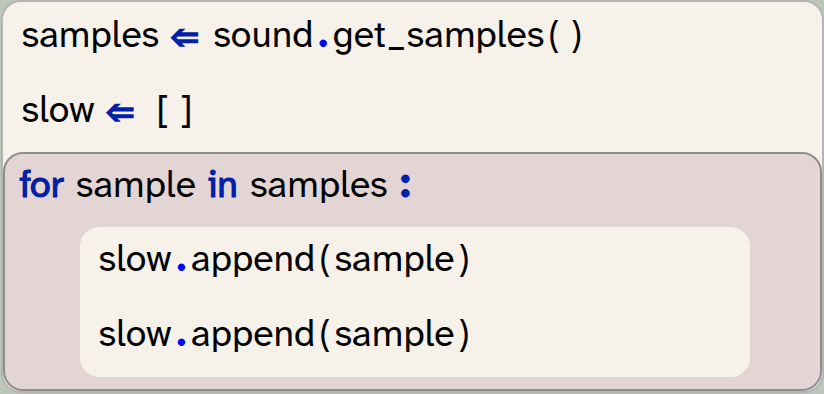
samples = sound.get_samples()
slow = []
for sample in samples:
   slow.append(sample)
   slow.append(sample)
We are starting here with an empty list. The append method adds a single element to the end of the list, and we can see that we are doing it twice to duplicate every element.
We could add both elements in a single statement if we make a short 2-element list from our two samples and then attach this list, using the extend method:
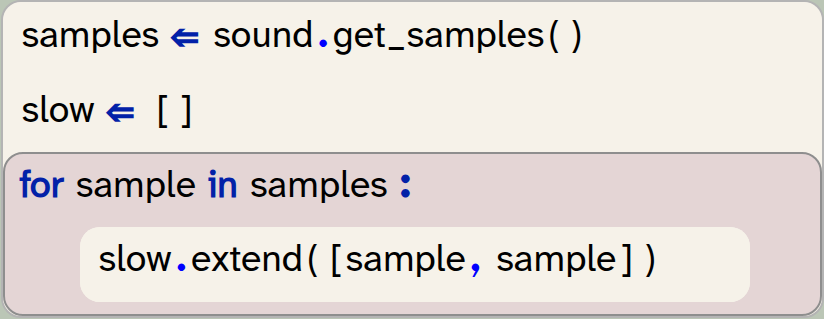
samples = sound.get_samples()
slow = []
for sample in samples:
   slow.extend([sample, sample])
We have to be careful here: If we tried to add the [sample, sample] list using the append method, we would not get an error, but it would not do what we intend to do. It would instead add the 2-element list as a single element into our new list, which is not what we need. To add each element separately, we must use the extend method.
Exercise 6.24 The difference between append and extend can be quite subtle. Research and explain the difference between slow.extend([sample, sample]) and slow.append([sample, sample]). Draw a diagram to aid your explanation.
Exercise 6.25 Implement a function to play the sound at half speed.
Exercise 6.26 If you like to try a slightly more advanced exercise, you can improve the quality of the double-length sound: Do not just duplicate every sample, but make the newly inserted samples the average of its two neighbours. The improvement in quality is subtle (and hard to hear), but this is a better way to play at half speed.
We can append a single element to a list using the list.append(elem) method. We can append every element from another list by using the list.extend(list2) method.
There are various other interesting sound effects we can create, now that we have seen how changing the samples list can create a new sound. We will suggest a few at the end of this chapter. Before we do this, however, it would be useful to create a simple interface for the user to more easily activate these effects.
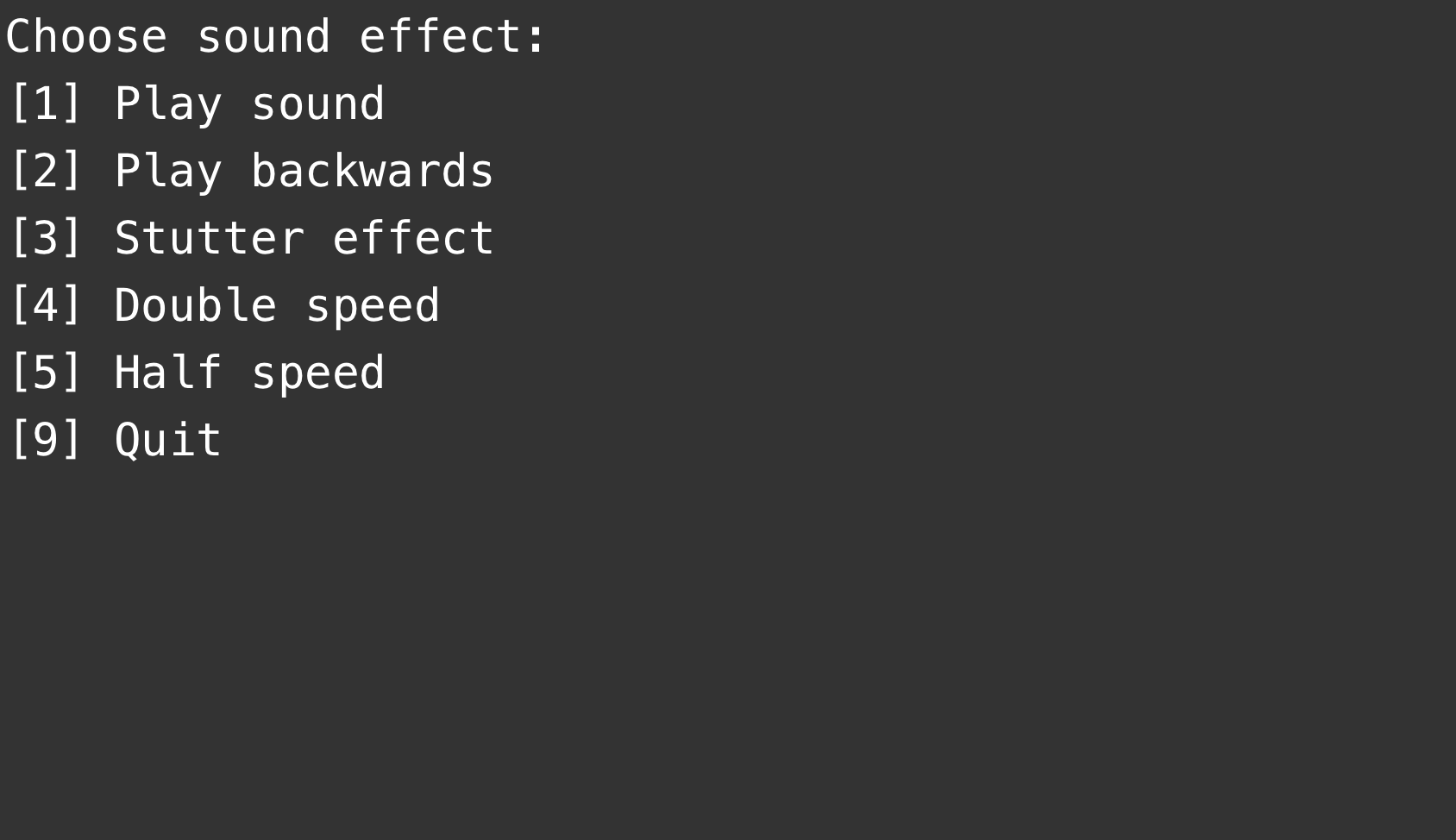
6.8. A simple text-based menu
In our current implementation, playing the sound effects was hard-coded in our program. Perhaps you wrote your code to play a single effect, disabling the calls that played the previous effects. Or perhaps you tried to play all effects one after the other – in this case, you will have discovered that the program does not actually wait for the sound to finish before continuing, and the sounds likely played overlapping. That is not a great effect.
It would be more useful to let the user choose an effect, in any order they like, from a list of available effects.
Implement such a choice now. Your task is to show a menu on the screen that looks something like the one shown in Figure 6.2.
For the main structure, use a while loop with a boolean variable exit that controls how long the loop continues. Then, in the loop, you can react to key presses, playing sound effects when needed, or setting this variable to True to exit:
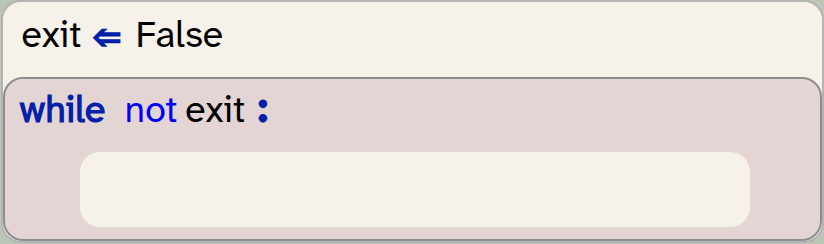
exit = False
while not exit:
    pass
Exercise 6.27 Write a function to display the menu on screen. Make sure to choose an appropriate name for the function, and to write a good function comment. Call this function from your main code section.
Exercise 6.28 In your 'My code' section, write a loop that reacts to key presses (using the get_key() function from the strype.graphics library). If a specific key is pressed, play the appropriate effect. Do this for all the effects you have implemented.
A version of the program with these exercises implemented is available in sounds-v3.
There are, however, many more experiments that we can do with our sounds. Some things you can try are suggested in the following exercises, but you are also encouraged to think about your own effects and trying them out.
Exercise 6.29 Implement a change in volume. You can decrease the volume by decreasing the values of each sample, for example dividing each sample value by 2 or by 4. You can increase the volume by multiplying the sample values. (However, you should be careful not to increase any value above 1.0, since sample values must be in the range -1 to 1.)
Exercise 6.30 Implement an echo effect. You can do this by chopping off the last half of the sound and attaching it to the end of your original sound multiple times. But each time it is repeated, it should have a lower volume than before.
Exercise 6.31 Give your echo effect function a parameter that specifies how often it should echo. And make sure the reduction in volume is such that the last echo is just about audible.
Exercise 6.32 Give your user a choice of multiple different sounds to apply the effects to.
Exercise 6.33 Experiment with producing sounds from scratch by creating lists of numbers and playing them as sound samples.
Exercise 6.34 Use graphics to make an interface for this program. Use several actors showing icons for effects, and play the effect when the user clicks the icon.
Exercise 6.35 If you feel very adventurous (this is an advanced exercise): Create a visual waveform representation of your sound in your graphics interface, similar to the one used in Strype’s own built-in sound editing dialogue.
6.9. Summary
In this chapter, we have seen yet another use of a list in Python: a list to hold the samples of a sound. Samples are numerical values, and by manipulating the list of samples, we can change a sound.
Along the way, we have encountered several useful operations on lists, such as joining and repeating lists, and slicing with step values.
-
A sound is stored as a list of samples. We can get the list of samples from a sound object using the
get_samples()method. -
A sample rate is the number of samples per second that is recorded for a sound. The higher the sample rate, the better the quality of the recording (and the larger the file when we save it).
-
A sound object can be created from a list of samples by using the statement
Sound(sample_list). -
List addition: We can join two lists together to form a single list by using the
+operator:list1 + list2. -
List multiplication: List elements can be repeated multiple times to form a new list by using the
*operator:list1 * 3. For example,[0, 1, 2] * 3will produce[0, 1, 2, 0, 1, 2, 0, 1, 2]. -
Slices from lists can include a step value. The syntax is
list[start : end : step]. When we use a step value, the slice is created by copying elements from start to end, using the step size to advance. All three slice values are optional. If we want to use a step size across the entire list, we can writelist[::step]. -
We can append a single element to a list using the
list.append(elem)method. We can append every element from another list by using thelist.extend(list2)method.
Morse code
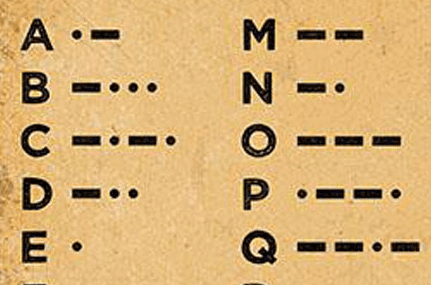
In the project suggestion at the end of Chapter 1, we have seen a cypher: the Caesar cypher. That project could encode plain text into cypher text (and then back again).
Now that we know about lists, sounds and samples, we can look at a more elaborate encoding: Morse code. It is more interesting because it does not encode text as (encrypted) text, but it encodes text as sound. (If you are not familar with Morse code, do a web search to find out more.)
The morse-code-start project implements half of this task: It includes code to turn a text string into Morse code and play it. It cannot, however, decode Morse code – turn the sound back into text.
Try to complete this project by implementing this decoding. You could, for example, let a friend play the Morse code sound to you, record it, and then try to decode the recording.
Predator/prey simulation
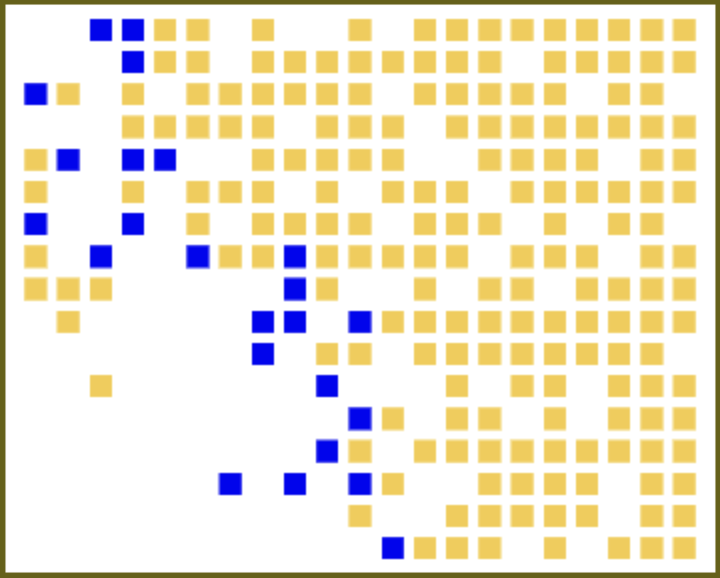
Another possibility of a project to experiment with at this stage is a predator/prey simulation.
A predator/prey simulation is a common, simple type of simulation that models the behaviour of two species, one of which hunts the other. In our case – in the foxes-and-rabbits project – we have a simulation of foxes and rabbits. Each of them is shown on screen as a coloured square in a grid, and running the simulation shows the evolution of this ecosystem.
The behaviour of our animals is quite simple: Rabbits just run around, have offspring, and eventually die of old age. Foxes are similar, but they also eat rabbits: if they see a rabbit near them, they will eat it, and if they do not eat for some time, they can starve.
For your study of lists in Python, have a look at how this project uses a list of lists to implement a two-dimensional grid.
Using this simulation, you can now examine several questions: Does the size of the ecosystem matter? (That is: does a species go extinct more easily in a smaller habitat?) Do foxes survive better if they have more offspring? If rabbits have fewer babies, will they die out? What happens when we introduce another species, one that hunts foxes?
There are endless possibilities to experiment with this project – study it and add your own ideas.
Appendix A: Python operators
This appendix lists the Python operators you are likely to need, organised by category.
A.1. Arithmetic operators
| Precedence | Operator | Name | Description |
|---|---|---|---|
Highest |
|
Unary minus |
Negation |
High |
|
Multiplication |
Multiply values |
|
True division |
Floating-point division |
|
|
Floor division |
Integer division (floor) |
|
|
Modulo |
Remainder |
|
Normal |
|
Addition |
Add values |
|
Subtraction |
Subtract value |
A.2. Boolean operators
| Precedence | Operator | Name | Description |
|---|---|---|---|
Highest |
|
Logical NOT |
Inverts truth value |
High |
|
Logical AND |
True if both operands are true |
Normal |
|
Logical OR |
True if either operand is true |
A.3. Comparison operators
| Precedence | Operator | Name | Description |
|---|---|---|---|
Normal |
|
Ordering |
Relational comparisons |
|
Equality |
Value comparison |
|
|
Identity |
Object identity test |
|
|
Membership |
Membership test |
A.4. List operators
Note that + and * both also work on lists. If you "add" two lists, it returns the lists joined together, end to end. So [1, 2] + [3, 4] gives you [1, 2, 3, 4]. If you multiply a list by a number, it repeats it. So [1, 2] * 2 gives [1, 2, 1, 2].
Lists also have another kind of operator: slicing. Imagine we have a list with all the letters of the alphabet: ["a", "b", "c", "d", … "z"] (the triple dots are not Python code, they just save us writing out the full alphabet).
-
letters[2:]would give the list from index 2 onwards. Since index 0 is the first position, index 2 is letter"c"so this will give the letters c to z. -
letters[:2]would give the list up to just before index 2. Since index 2 is letter c, this would just give["a", "b"]. -
letters[2:5]would give the list from index 2 to just before index 5. Therefore this is indexes 2, 3, and 4; letters c to e. -
letters[5:10:2]would give the list from index 5 to just before index 10, in steps of 2. Index 5 is letter f, so this will be["f", "h", "j"]. -
The final variants omit the start or the end:
letters[5::2]returns all letters from 5 onwards in steps of 2. Whereasletters[:5:2]returns all letters up to just before index 5, in steps of 2, so["a", "c", "e"].
A.5. More operators
In this appendix we have omitted some advanced operators. There is a full list of operators in the Python documentation.
Appendix B: Built-in functions
Python has many built-in functions. Built-in functions are automatically available for use in Python, without needing to import them. (There are other functions which are included in Python but need an import, such as the random number functions.)
This is a selective list of a few of the built-in functions that we think you might find particularly useful. You can find all the functions, plus more details on each, in the online Python documentation at https://docs.python.org/3/library/ Some functions can take extra optional parameters that we have omitted here for simplicity.
B.1. Miscellaneous functions
| Signature | Description |
|---|---|
abs(x) |
Returns the absolute value of |
min(a, b) |
Returns the lowest of |
max(a, b) |
Returns the highest of |
range(x) |
Creates a range of numbers. If you provide one actual parameter it gives the range from |
round(x) |
Rounds the number to the nearest whole number |
B.2. Type conversion functions
| Signature | Description |
|---|---|
bool(x) |
Converts |
chr(x) |
Converts an integer |
dict(x) |
Converts |
float(x) |
Converts |
int(x) |
Converts |
list(x) |
Converts |
set(x) |
Converts |
str(x) |
Converts |
type(x) |
Returns the type of |
B.3. Console functions
| Signature | Description |
|---|---|
input(prompt) |
Prints the prompt then returns the next string the user inputs (once they press enter). |
print(s) |
Prints |
B.4. List-related functions
| Signature | Description |
|---|---|
all(list) |
Returns True if all of the values in the list are True when converted to boolean. |
any(list) |
Returns True if any of the values in the list are True when converted to boolean. |
len(list) |
Returns the number of items in the given |
sorted(list) |
Returns a sorted copy of the given |
sum(list) |
Returns the sum of all the numbers in the given |
zip(list1, list2) |
Pairs the lists together into a list of pairs. So |
See the previous appendix on operators for a description of operators that work on lists, and slicing.
B.5. List methods
Lists have methods that can be called on a list object, using the syntax list_name.method_name(). We summarise some of the most important methods below:
| Signature | Description |
|---|---|
list.append(item) |
Adds the given single item to the end of the list. |
list.clear() |
Removes all items from the list. |
list.copy() |
Makes a copy of the list. |
list.count(x) |
Returns the number of times that |
list.extend(list2) |
Adds all the items from |
list.index(x) |
Returns the index of the first time that |
list.pop() |
Removes the last item from the list (and returns it). |
list.remove(x) |
Removes the first appearance of |
list.reverse() |
Reverses the list; the first element becomes the last and the last becomes the first and so on. |
list.sort() |
Sorts the list. (Unlike the |
There are more list methods, which you can find in the online documentation: https://docs.python.org/3/tutorial/datastructures.html#more-on-lists
Appendix C: Working with data files
This appendix explains how you can access data files from your Strype code, including files provided with Strype as well as your own files.
Strype cannot access your local file system. This is because Strype runs in a web browser, and for security reasons, browsers are not permitted to access local files without an explicit user action.
There are, however, several mechanisms in Strype that let you access data files.
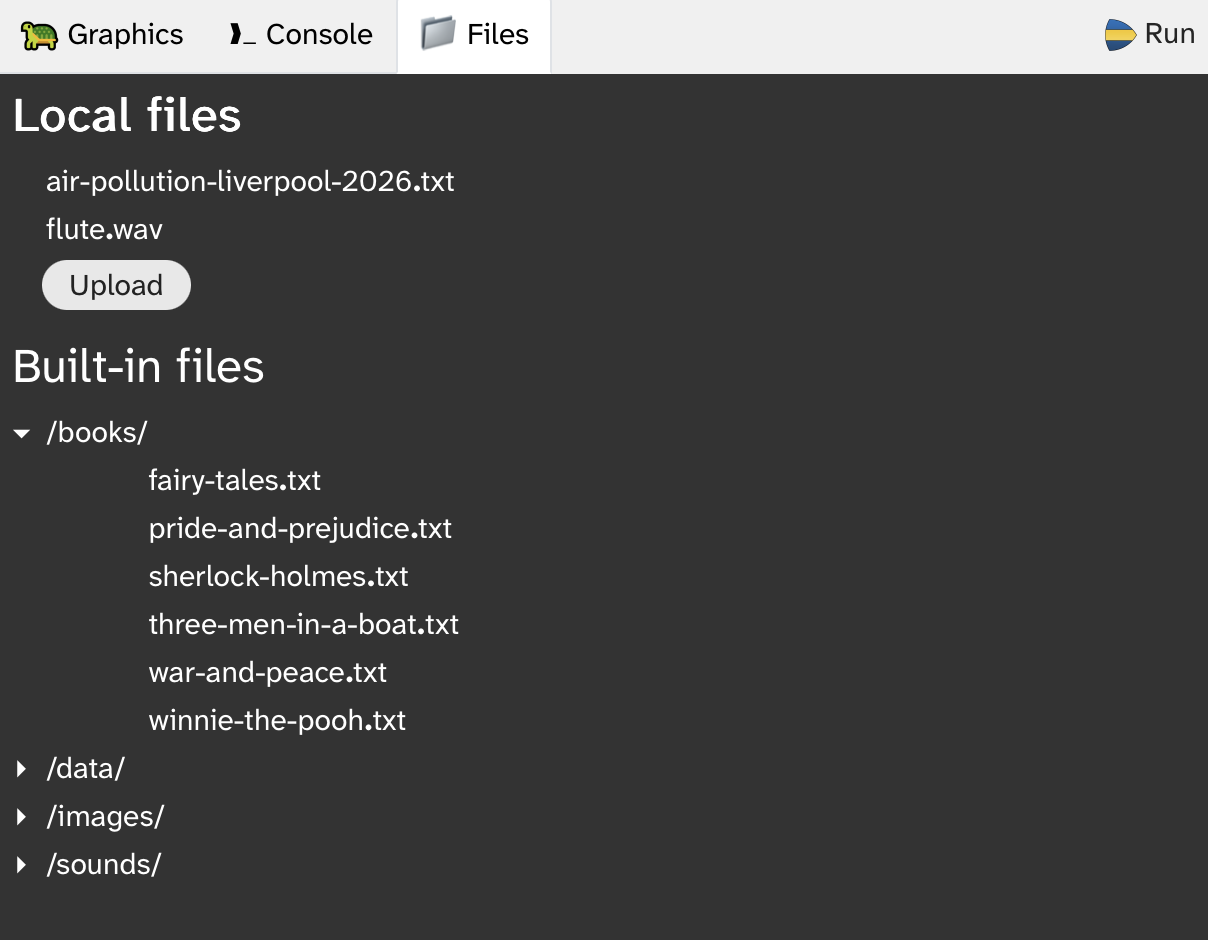
C.1. The Strype file system
The Strype file system is shown in a tab next to the graphics world and console tabs (Figure C.1). It shows two sections: Local files and Built-in files.
The local file area will initially be empty. Files can be uploaded to this area from your computer’s file system to make them available to your program. They are stored for the current session only, and will be discarded when the browser window is closed (unless they have been downloaded or pinned – see below.)
The built-in file area shows a number of files for use in Strype that are provided by the environment. They can be read by your program. They are read-only; they cannot be changed or deleted.
C.2. Accessing built-in files
Files from the built-in file area can be accessed using absolute paths (starting with the / character). For example, to read a data file, you might use

with open("/books/winnie-the-pooh.txt")  as file :
    data  = file.readline()
You can also access image or sound files directly for use in your graphics projects:

set_background("/images/backgrounds/brick.jpg")You can click on a file name in the file system view to copy its path for easy pasting into your code.
C.3. Accessing your own files
If you use a filename without an absolute path, you are accessing the current working directory. By default, this is the directory holding the local files shown at the top in Figure C.1. The following code reads a file from the local file area:

with open("air-pollution-liverpool-2026.txt")  as file :
    data  = file.readline()
To access your own data files, use the "Upload" button in the local file area to upload your file, and then it is available for reading in your program.
Similarly, when you write to a file without an absolute path, it will be written into the local file area. You can then either view its contents or download it to your local computer (see below).
C.4. Working with an online file system
If your project has been stored to an online file system, such as Google Drive or OneDrive, then your current working directory is the online folder where your project is stored.
Thus, writing to a new file named "myfile.txt" will create this file in the online directory where your project is saved. Similarly, reading from "myfile.txt" will look for the file in that directory. Writing to "data/myfile.txt" will write to a file in a folder called "data" in your project’s online folder.
If your file is saved in an online file system, but you still wish to access Strype’s local file area, you can do so by prefixing the filename with the path "/local/". For instance, "/local/air-pollution-liverpool-2026.txt" will access this file in the local area independent of the storage location of the project.
C.5. Pinning files
Files can be "pinned" to the project by using the small, pin-shaped control next to the filename. When a file is pinned, the pin symbol is permanently displayed next to the filename (Figure C.2).
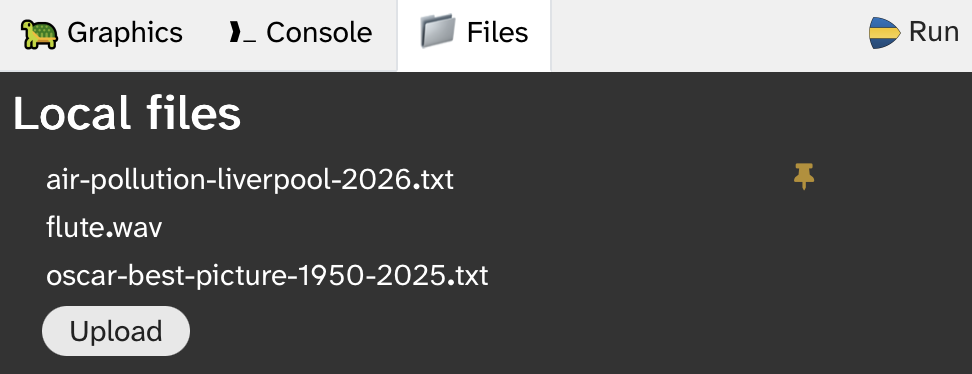
Pinned files are saved together with the Strype project. If the project is later opened again, the pinned file will be loaded with the project.
C.6. Operations on data files
When the mouse pointer hovers over a filename, a set of controls is displayed to the right of the filename for operations on the file (Figure C.3)

The available controls are, from left to right: Delete, Pin, View, Download.
Copying the file path
Clicking on the name of the file copies the filename (including its path for built-in files) for easy pasting into the program code.
Deleting files
The Delete operation deletes the file from the local file area. This operation cannot be undone. Built-in files cannot be deleted.
Viewing file contents
Using the View control shows the contents of the file. This can also be used with image or sound files to inspect those files.
Downloading files
The Download control downloads a copy of the file to the computer’s local file system.