Appendix B: Working with data files
This appendix explains how you can access data files from your Strype code, including files provided with Strype as well as your own files.
Strype cannot access your local file system. This is because Strype runs in a web browser, and for security reasons, browsers are not permitted to access local files without an explicit user action.
There are, however, several mechanisms in Strype that let you access data files.
B.1. The Strype file system
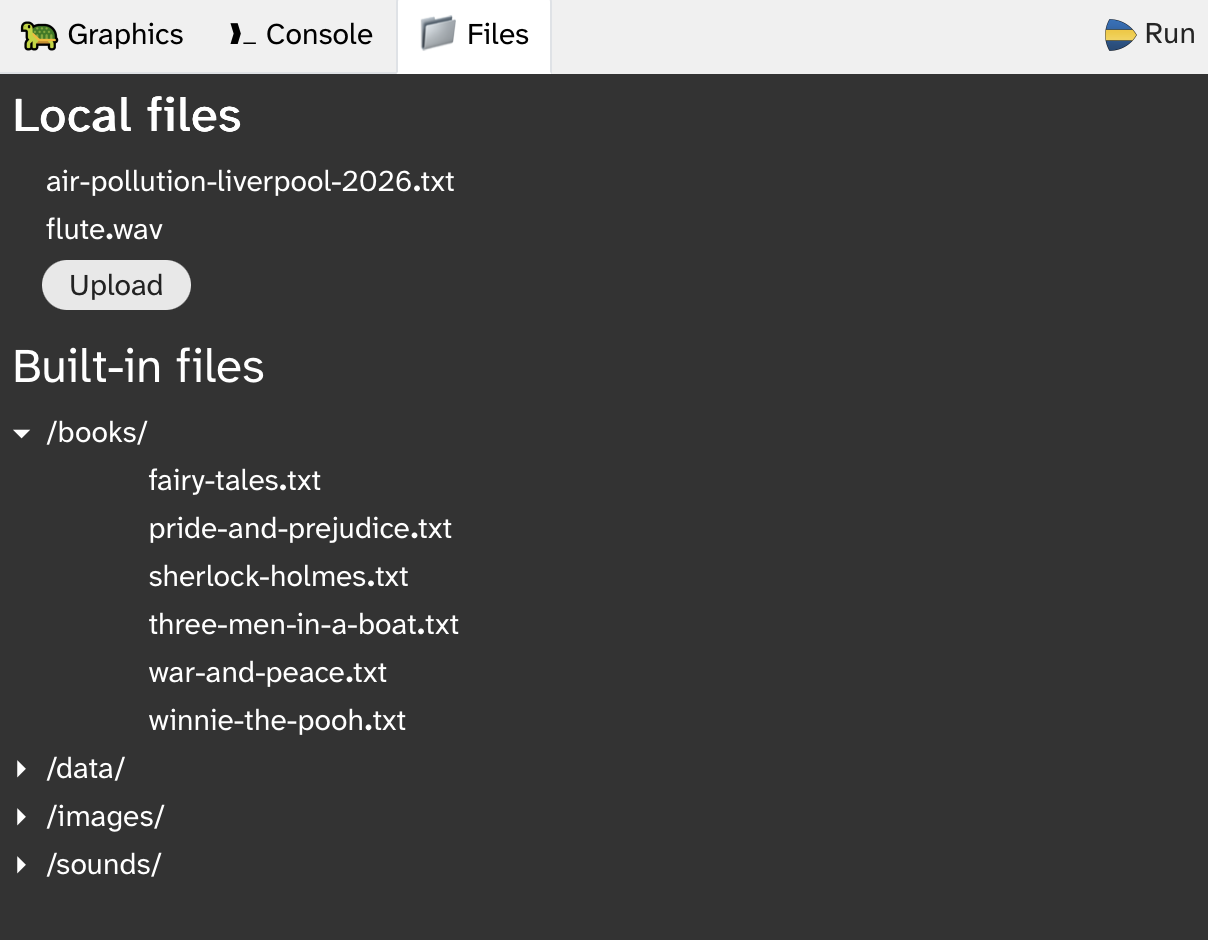
The Strype file system is shown in a tab next to the graphics world and console tabs (Figure B.20). It shows two sections: Local files and Built-in files.
The local file area will initially be empty. Files can be uploaded to this area from your computer’s file system to make them available to your program. They are stored for the current session only, and will be discarded when the browser window is closed (unless they have been downloaded or pinned – see below.)
The built-in file area shows a number of files for use in Strype that are provided by the environment. They can be read by your program. They are read-only; they cannot be changed or deleted.
B.2. Accessing built-in files
Files from the built-in file area can be accessed using absolute paths (starting with the / character). For example, to read a data file, you might use

with open("/books/winnie-the-pooh.txt")  as file :
    data  = file.readline()
You can also access image or sound files directly for use in your graphics projects:

set_background("/images/backgrounds/brick.jpg")You can click on a file name in the file system view to copy its path for easy pasting into your code.
B.3. Accessing your own files
If you use a filename without an absolute path, you are accessing the current working directory. By default, this is the directory holding the local files shown at the top in Figure B.20. The following code reads a file from the local file area:

with open("air-pollution-liverpool-2026.txt")  as file :
    data  = file.readline()
To access your own data files, use the "Upload" button in the local file area to upload your file, and then it is available for reading in your program.
Similarly, when you write to a file without an absolute path, it will be written into the local file area. You can then either view its contents or download it to your local computer (see below).
B.4. Working with an online file system
If your project has been stored to an online file system, such as Google Drive or OneDrive, then your current working directory is the online folder where your project is stored.
Thus, writing to a new file named "myfile.txt" will create this file in the online directory where your project is saved. Similarly, reading from "myfile.txt" will look for the file in that directory. Writing to "data/myfile.txt" will write to a file in a folder called "data" in your project’s online folder.
If your file is saved in an online file system, but you still wish to access Strype’s local file area, you can do so by prefixing the filename with the path "/local/". For instance, "/local/air-pollution-liverpool-2026.txt" will access this file in the local area independent of the storage location of the project.
B.5. Pinning files
Files can be "pinned" to the project by using the small, pin-shaped control next to the filename. When a file is pinned, the pin symbol is permanently displayed next to the filename (Figure B.21).
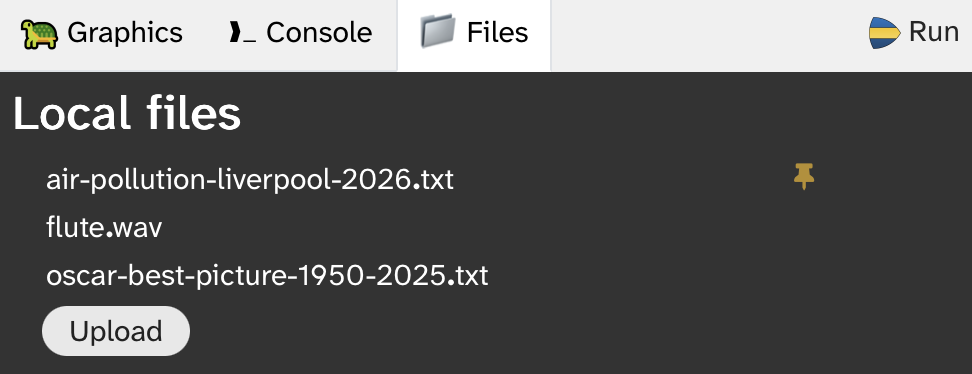
Pinned files are saved together with the Strype project. If the project is later opened again, the pinned file will be loaded with the project.
B.6. Operations on data files
When the mouse pointer hovers over a filename, a set of controls is displayed to the right of the filename for operations on the file (Figure B.22)

The available controls are, from left to right: Delete, Pin, View, Download.
Copying the file path
Clicking on the name of the file copies the filename (including its path for built-in files) for easy pasting into the program code.
Deleting files
The Delete operation deletes the file from the local file area. This operation cannot be undone. Built-in files cannot be deleted.
Viewing file contents
Using the View control shows the contents of the file. This can also be used with image or sound files to inspect those files.
Downloading files
The Download control downloads a copy of the file to the computer’s local file system.